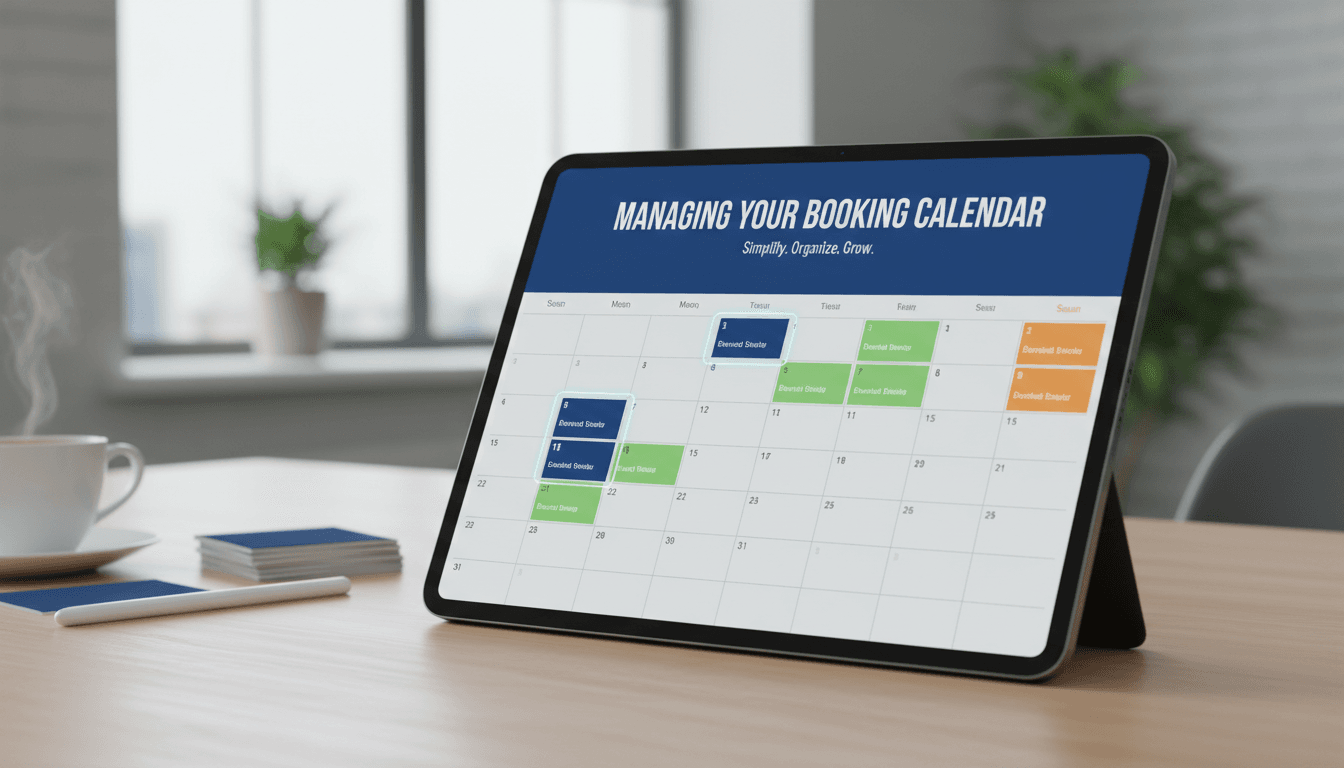
Managing your booking calendar
Your booking calendar is the central hub for your business schedule. It gives you a real-time view of your appointments, rentals, or reservations, helping you avoid double bookings and see your daily workload at a glance.
View and manage your schedule
Follow these steps to navigate your calendar and keep your bookings organized.
- Access the calendar
Log in to your dashboard and go to Bookings > Calendar. This screen shows all confirmed and pending bookings. - Switch your view
Use the buttons at the top right to toggle between Day and Month views. The Month view is best for long-term planning, while the Day view helps you manage specific time slots and staff transitions. - Filter by product or resource
If you offer multiple services (e.g., "Haircut" and "Coloring"), use the dropdown menus at the top to filter the view. This narrows your focus so you only see specific types of appointments. - Check booking details
Click on any colored block in the calendar. A summary will pop up showing the customer’s name, the service booked, and the time. Click Edit Booking if you need to change the status or update the customer’s information. - Manually add a booking
If a customer calls to book over the phone, click the Add Booking button. Select the customer (or create a new one), choose the product, and set the date. This ensures the time slot is blocked out on your website immediately.
Real-world scenarios
Handling a rescheduling request
If a customer needs to move their appointment, find their booking on the calendar and click it. Use the date and time selectors to move the booking to a new slot. The system will automatically check if the new time is available before saving.
Blocking out time for maintenance or holidays
If you need to close your shop for a day or take a break, go to Bookings > General Availability. Here, you can add a "Range" to block out specific dates or hours. This removes those slots from your public calendar so customers cannot book them.
Troubleshooting common issues
- Bookings aren’t showing up: Check the filters at the top of the calendar. You may have a specific product or status (like "Pending") filtered out. Set all filters to "All" to see every entry.
- Double bookings are occurring: This usually happens if "Resources" are shared between products but not linked correctly. Review your product settings to ensure that once a resource is booked, it is marked as unavailable across all services.
- Timezone confusion: If appointments appear at the wrong time, go to Settings > General and verify your site’s timezone. Ensure your "Booking" settings are set to use the site’s timezone rather than the customer’s if you operate from a physical location.
Summary
The booking calendar keeps your business running smoothly by centralizing your appointments. Regularly checking your filters and blocking out personal time ensures your availability is always accurate for your customers.
Related topics:
- Setting up your first booking product
- How to sync with Google Calendar
- Managing booking resources and staff