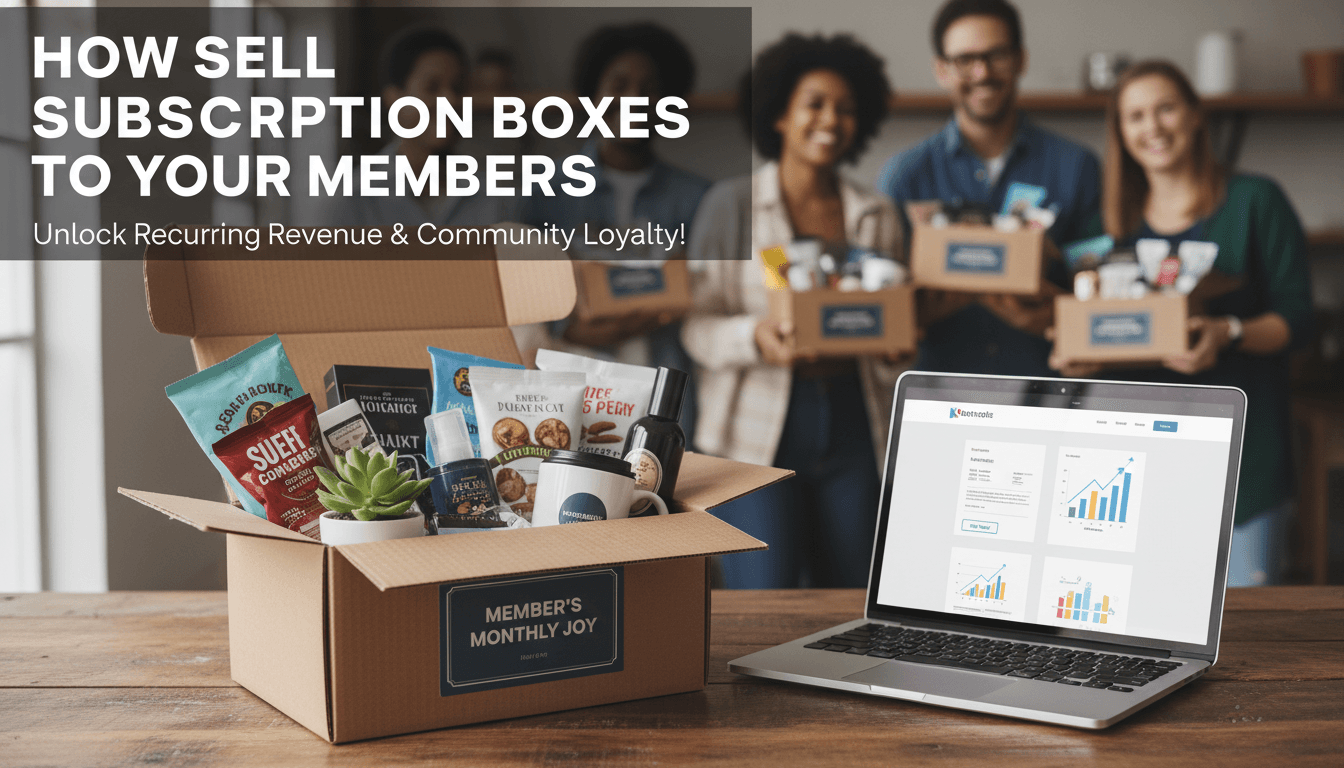
Subscription boxes are a reliable way to build predictable, recurring revenue for your business. Whether you are shipping monthly coffee beans, weekly floral arrangements, or curated gift boxes, setting up a subscription model on WooShop keeps your customers engaged without them needing to manually reorder every time.
How to set up your subscription box
Follow these steps to create a subscription product and start taking recurring orders.
-
Create a new product
Log in to your dashboard and go to Products > Add New. Give your box a clear name, like "Monthly Wellness Box." -
Select the product type
In the Product Data dropdown menu, choose Simple subscription. If you want customers to choose options (like shirt size or dietary preference), choose Variable subscription. -
Set the price and schedule
Enter your price and choose the interval. For example, you might set it to "$45.00 every month." You can also set a "Subscription expires after" date if the box is only for a limited time (like a 6-month seasonal program), or leave it at "Never expire" for ongoing memberships. -
Add a sign-up fee or free trial (Optional)
If you need to cover the cost of a starter kit, add a Sign-up fee. If you want customers to try the first box for free, set a Free trial period. -
Configure shipping
Go to the Shipping tab to enter the weight and dimensions of your box. This ensures shipping costs are calculated correctly at checkout. -
Design the sales page
Use the Kadence blocks to build your page. Use a "Row Layout" to create a clean section that highlights what’s inside this month’s box. A "Testimonials" block underneath the product price can help build trust with new members. - Publish
Click Publish. Your subscription box is now live and ready for customers.
Practical scenarios
- The Coffee Roaster: A local cafe sells a "Roaster’s Choice" box. They set it to $20 every 2 weeks. Customers get fresh beans delivered to their door automatically, providing the cafe with steady cash flow.
- The Skincare Boutique: A shop owner creates a "Quarterly Glow Box." They set the interval to "Every 3 months." This allows them to ship larger, higher-value items less frequently.
- The Meal Prep Service: A restaurant offers a weekly meal box. They use a Variable subscription so customers can choose between "Vegetarian" or "Meat" options during checkout.
Troubleshooting common issues
The subscription didn’t renew
Check the customer’s payment method. Most failed renewals happen because a credit card expired or had insufficient funds. Your site will automatically send an email to the customer asking them to update their payment details.
Shipping costs aren’t appearing
Ensure you have "Virtual" unchecked in the Product Data settings. If "Virtual" is checked, the system assumes there is no physical box to ship and won’t charge for delivery.
Customers want to pause their box
By default, customers can login to their account and click "Suspend" on their subscription. If you don’t see this option, check your settings under WooCommerce > Settings > Subscriptions to ensure "Customer Suspensions" is enabled.
Trial periods and shipping
If you offer a free trial, remember that the customer will not be charged for the box until the trial ends. If you need to ship a box immediately, it is usually better to offer a "Sign-up fee" that covers the first box instead of a free trial.
Next steps
Once your first box is live, you can monitor your recurring income through the "Analytics" tab in your dashboard. To further customize your member experience, you might want to look into:
- Setting up automated email reminders for upcoming renewals.
- Creating a "Members Only" page using Kadence elements.
- Offering a discount for customers who pay for a full year upfront.