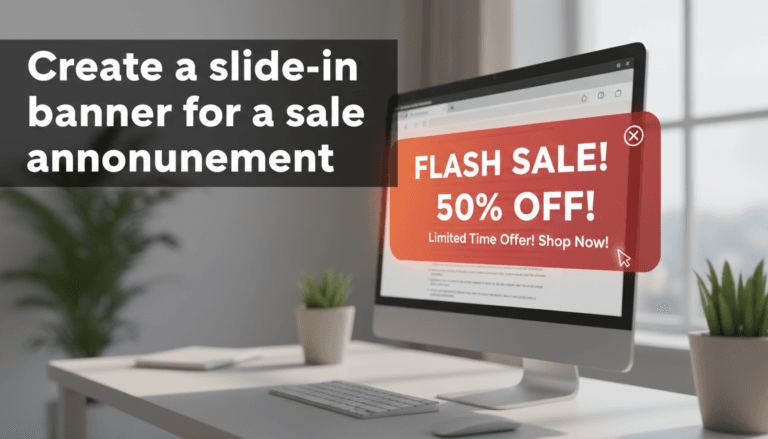
How to set display rules for popups and banners
Display rules control exactly where, when, and to whom your popups or banners appear. Instead of showing every message to every visitor, you can target specific actions—like showing a discount code only when someone is about to leave your site or a free shipping banner only on checkout pages.
How to configure display rules
- Open your popup or banner: Navigate to the Popups or Banners section in your WooShop dashboard and click on the item you want to edit.
- Access Settings: In the right-hand sidebar, click the Settings icon (it looks like a small gear or list).
- Set the Location (Show On): Under the "Display Settings" tab, find the Show On dropdown.
- Select Entire Site to show it everywhere.
- Select Single Pages or Products to limit it to specific areas of your shop.
- Target your Audience (User Settings): Choose who should see the message. You can show it to everyone, or limit it to "Logged Out" users (perfect for new customer discounts) or "Logged In" users (great for member-only perks).
- Choose the Trigger: Go to the Triggers tab to decide what makes the popup appear:
- Time Delay: Shows after a few seconds.
- Scroll Distance: Shows once a visitor scrolls down a percentage of the page.
- Exit Intent: Shows when a visitor moves their mouse to close the tab.
- Set Frequency: Use the Cookie Settings to prevent the same person from seeing the popup too often. Setting this to 30 days means once a user closes the popup, they won’t see it again for a month.
- Publish: Click Update or Publish at the top right to make your rules live.
Practical examples for your shop
- The Newsletter Sign-up: Set this to appear on Blog Posts only, using an Exit Intent trigger. This captures readers right before they leave without interrupting their reading.
- Free Shipping Alert: Set this as a banner to show on the Entire Site for all users. Use a simple Page Load trigger so it’s the first thing people see.
- Cart Abandonment Offer: Set the location to the Cart Page only, with a Time Delay of 20 seconds. This gives hesitant shoppers a nudge to complete their purchase.
Troubleshooting common issues
The popup isn’t showing up at all
Check if you are logged in. If your display rules are set to "Logged Out Users," you won’t see the popup while editing your site. Open your shop in an Incognito/Private window to test it as a regular visitor.
The popup appears every time I refresh the page
This usually means your Cookie Settings are disabled or set to "0." Increase the cookie duration to a few days so you don’t annoy returning customers.
It shows on mobile but looks cut off
In the settings sidebar, look for Target Device. You can choose to show specific popups only on desktop and create a separate, simplified version for mobile users to ensure a better experience.
Conflicting rules
If you have two popups set to the "Entire Site" with the same trigger, they might clash. Ensure your display rules are specific to avoid overlapping messages.
Summary
By tailoring where and when your messages appear, you keep your shop professional and avoid overwhelming your customers. Always test your rules in a private browser tab to ensure the timing feels right.
Next steps to explore:
- Creating your first email capture popup
- Styling banners to match your brand colors
- Using countdown timers for flash sales