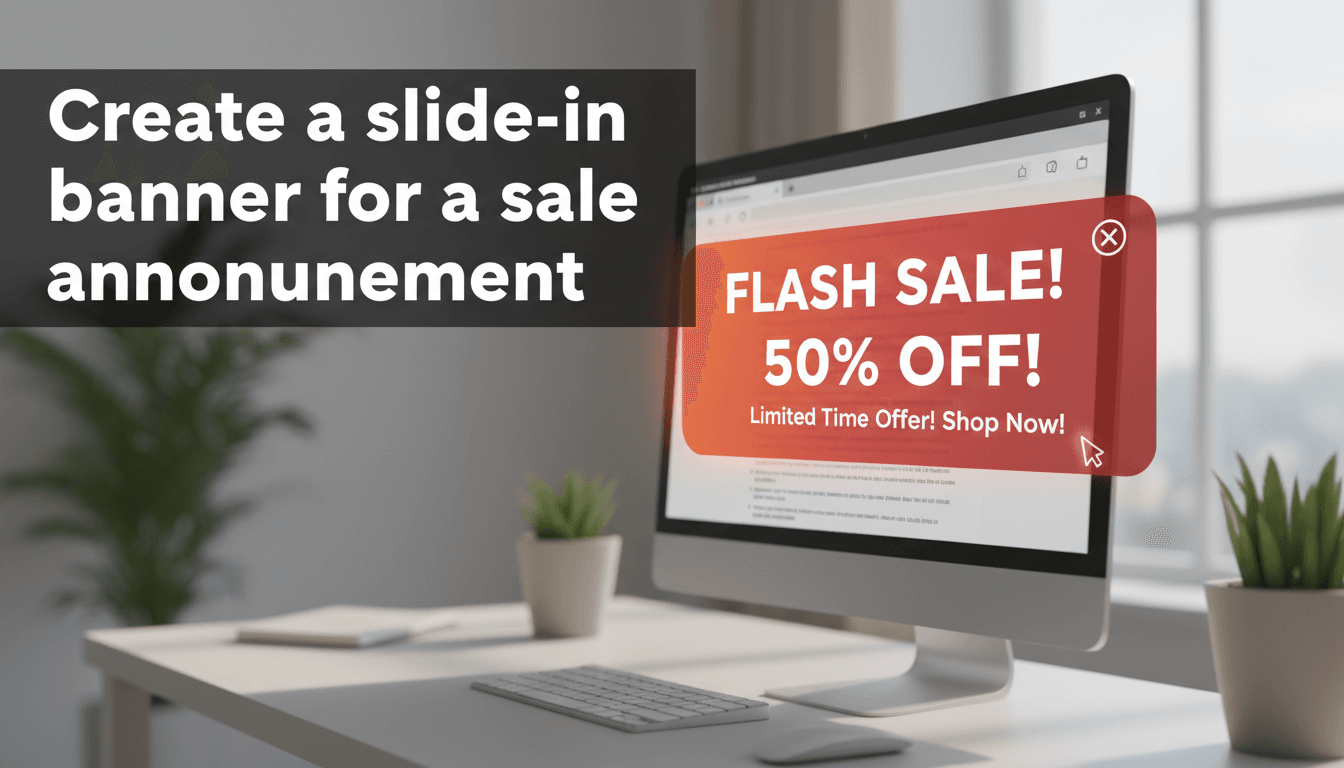
Slide-in banners are a subtle way to alert customers about a sale, a new product, or a coupon code. Unlike popups that block the entire screen, slide-ins appear in the corner, allowing shoppers to keep browsing while keeping your offer in view.
Steps to create your slide-in banner
- Open Kadence Conversions: From your WooShop dashboard, go to Kadence Conversions and click Add New.
- Select "Slide-In": You will see options for popups, banners, and slide-ins. Choose Slide-In to see the available templates.
- Choose a Template: Pick a design that closely matches your goal. You can change all the colors and text later, so focus on the general layout.
- Customize the Content: Click on the text to type your sale message. Use the sidebar settings to change button colors, background images, or fonts to match your brand.
- Set the Trigger: Look for the Launch Triggers section in the settings sidebar. Decide when the banner should appear. Common choices include:
- Time Delay: Shows up after a few seconds.
- Scroll Distance: Shows up after the user scrolls down 25% of the page.
- Exit Intent: Appears when a user moves their mouse to leave the site.
- Choose Display Settings: Decide where the banner shows up. You can set it to appear on your entire site, or limit it to specific WooCommerce product categories.
- Set Frequency: Under the Repeat Control settings, choose how often a returning visitor sees the banner. Setting this to "7 days" ensures you don’t annoy your regular customers.
- Publish: Click the blue Publish button at the top right to make the banner live.
Practical uses for your shop
- Flash Sales: "20% off all orders until midnight! Use code: QUICK20."
- Shipping Thresholds: "Did you know? Spend $50 and get free shipping automatically."
- Newsletter Signups: "Join our list for an instant 10% discount on your first order."
- Menu Updates: For restaurant owners: "Our seasonal pumpkin spice treats are back. View the menu."
Troubleshooting common issues
- Banner not appearing: Check if you have an active ad-blocker in your browser, as these sometimes hide marketing elements. Also, ensure the "Display Settings" are set to "Entire Site" if you want it everywhere.
- Too many popups: If you have multiple banners or popups active, they may overlap. It is best to have only one active conversion element at a time to keep the shopping experience clean.
- Mobile display issues: Slide-ins can take up a lot of room on a phone screen. If the banner looks too large, go to the Visibility settings and choose "Hide on Mobile," or simplify the text to make the box smaller.
- Caching: If you make a change but don’t see it on your live site, clear your site cache via the top admin bar.
Quick recap
Slide-in banners help increase sales by highlighting offers without interrupting the customer. Use the Kadence Conversions tool to pick a template, set your trigger, and choose which pages the banner should appear on.
Related topics:
- Setting up WooCommerce coupons
- Customizing your Kadence theme colors
- Managing your shop’s notification bar