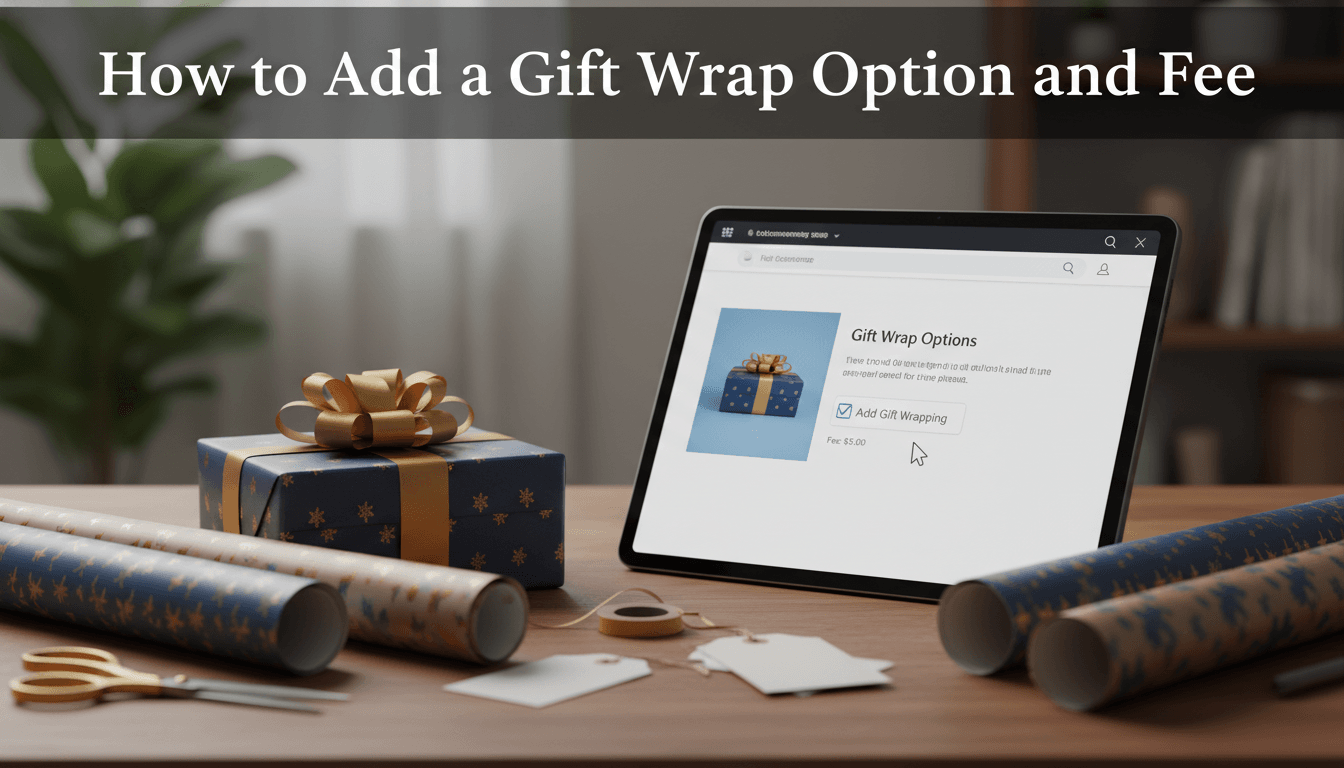
Offering a gift wrap option is an easy way to save your customers time while increasing your store’s average order value. You can set a flat fee for the service or offer different wrapping styles for a small upcharge.
How to set up gift wrap fees
We use the Product Add-ons feature to handle these options. This allows you to apply the gift wrap choice to your entire catalog at once or just specific items.
-
Open the Add-ons menu
From your WordPress dashboard, go to Products and select Add-ons. -
Create a new global add-on
Click the Add New button. If you want gift wrapping to appear on every product in your shop, leave the "Applied to" setting as All Products. If you only want it for specific categories (like "Jewelry"), select those categories from the list. -
Add the gift wrap field
Click Add Field. In the "Type" dropdown, choose Checkboxes (if they can choose multiple things) or Radio Buttons (if they should only pick one type of wrap). -
Enter the details
- Title: Type "Add Gift Wrapping?"
- Description: Briefly explain what they get (e.g., "Hand-wrapped in recycled kraft paper with a seasonal ribbon").
-
Set your price
Under the Options section, add your labels and costs:- Label: Standard Gift Wrap
- Price: Enter your fee (e.g., 5.00)
- Price Type: Select Flat Fee. This ensures they are only charged once per product, regardless of how many units of that product they buy.
- Save your changes
Click Publish at the top right. The option will now appear on your product pages just above the "Add to Cart" button.
Practical uses for gift options
- Premium Gift Box: Offer a basic wrap for $3.00 or a premium rigid gift box for $8.00 using the Radio Button settings.
- Gift Messaging: Add a second field using the Short Text or Textarea type so customers can type a personalized note for free.
- Seasonal Specials: Update your add-on title to "Holiday Gift Wrap" during December to make the option more relevant.
Troubleshooting common issues
The fee isn’t showing up in the cart
Double-check that you selected Flat Fee or Quantity Based in the price type dropdown. If the price is set to 0, it may not appear as a line item in the checkout.
Tax isn’t being applied to the wrap fee
If your gift wrapping service is taxable, ensure your tax settings in WooCommerce > Settings > Tax are configured to include fees. Most shop owners treat gift wrap as a taxable service.
The option is appearing on products that don’t need it
If you have digital downloads or gift cards, you don’t want a gift wrap option appearing there. Edit your Global Add-on and use the Exclude Categories box to keep the option off your digital products.
Next steps
Now that your gift options are live, you might want to look into setting up custom shipping labels or adding a gift receipt option to your packing slips.