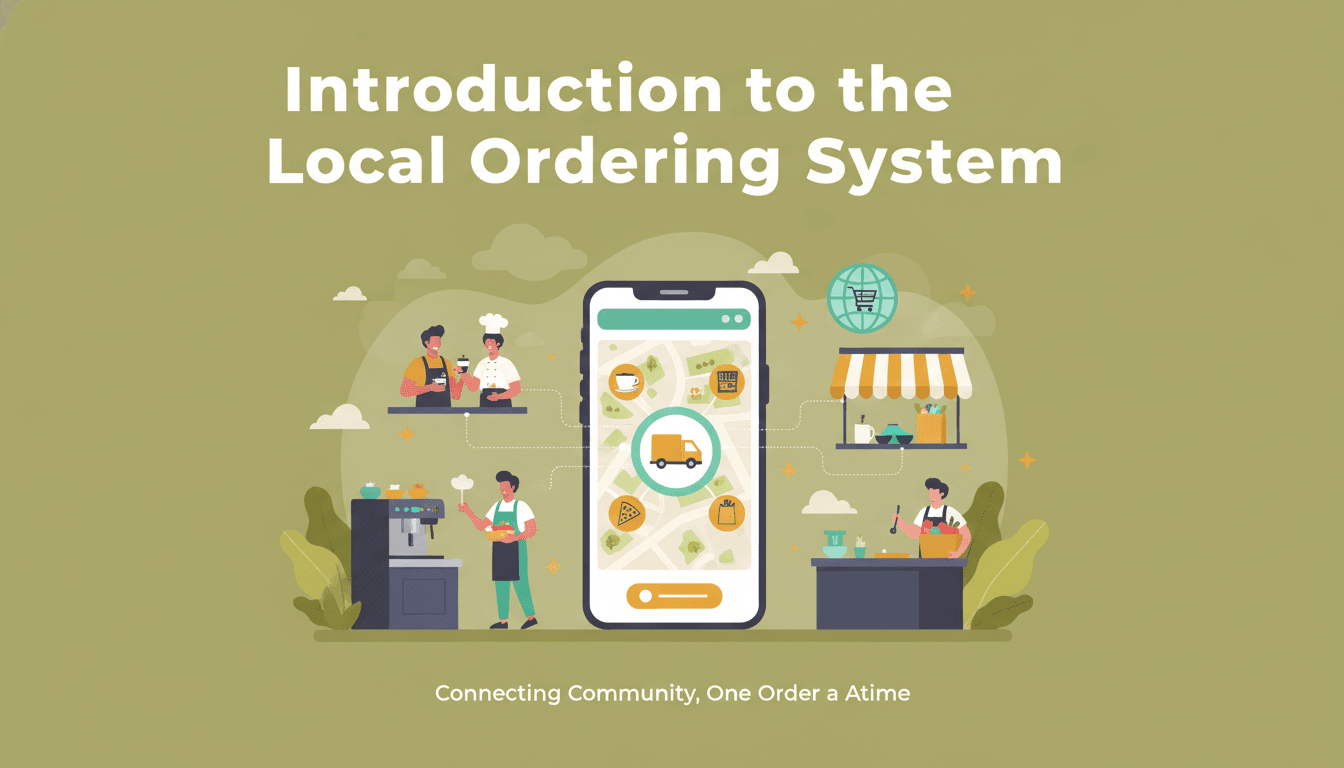
Local ordering bridges the gap between your online store and your physical location. It allows customers to browse your inventory online and choose to pick up their items in person or have them served at their table, helping you save on shipping costs and serve your local community more efficiently.
Setting up local pickup
Follow these steps to enable local ordering on your WooShop site:
- Navigate to Shipping Settings: From your dashboard, go to WooCommerce > Settings and click the Shipping tab.
- Add a Shipping Zone: Click Add shipping zone. Give your zone a name (like "Local Pickup") and select your specific region or zip codes.
- Add the Shipping Method: Within that zone, click Add shipping method. Select Local Pickup from the dropdown menu and click Continue.
- Configure Costs: Click Edit on the Local Pickup method you just created. You can set the cost to zero (standard for pickup) or add a small handling fee if needed.
- Save Changes: Ensure you click the Save changes button at the bottom of the page.
Practical ways to use local ordering
- The "Click and Collect" Boutique: A clothing store allows customers to buy online and pick up their items two hours later, ensuring the stock is reserved and ready.
- The Coffee Shop: A cafe uses local ordering to let customers pay for their latte before they arrive, reducing morning wait times and lines.
- The Restaurant Table Service: By using QR codes on tables that link directly to product pages, diners can order additional drinks or desserts without waiting for a server.
Troubleshooting common issues
The "Local Pickup" option isn’t appearing at checkout
Check your Shipping Zones. If a customer enters a zip code that falls outside of the zone you created, the local pickup option won’t show up. Make sure your zone covers all the areas where your customers live.
Customers are still being asked for a shipping address
By default, WooCommerce requires a billing address. If you want to simplify this for local customers, you may need to adjust your checkout fields. However, for tax purposes, keeping the billing address is usually recommended.
Emails don’t tell the customer where to go
If your pickup instructions aren’t clear, go to WooCommerce > Settings > Emails. Edit the "Processing Order" email to include your shop’s address and pickup hours so customers know exactly when to arrive.
Recap
Local ordering is a straightforward way to handle in-person transactions through your website. By setting up a dedicated shipping zone and enabling the local pickup method, you give your customers more flexibility in how they receive their products.
Related guides:
- How to customize your checkout page with Kadence
- Setting up order notification alerts
- Managing inventory for multiple locations