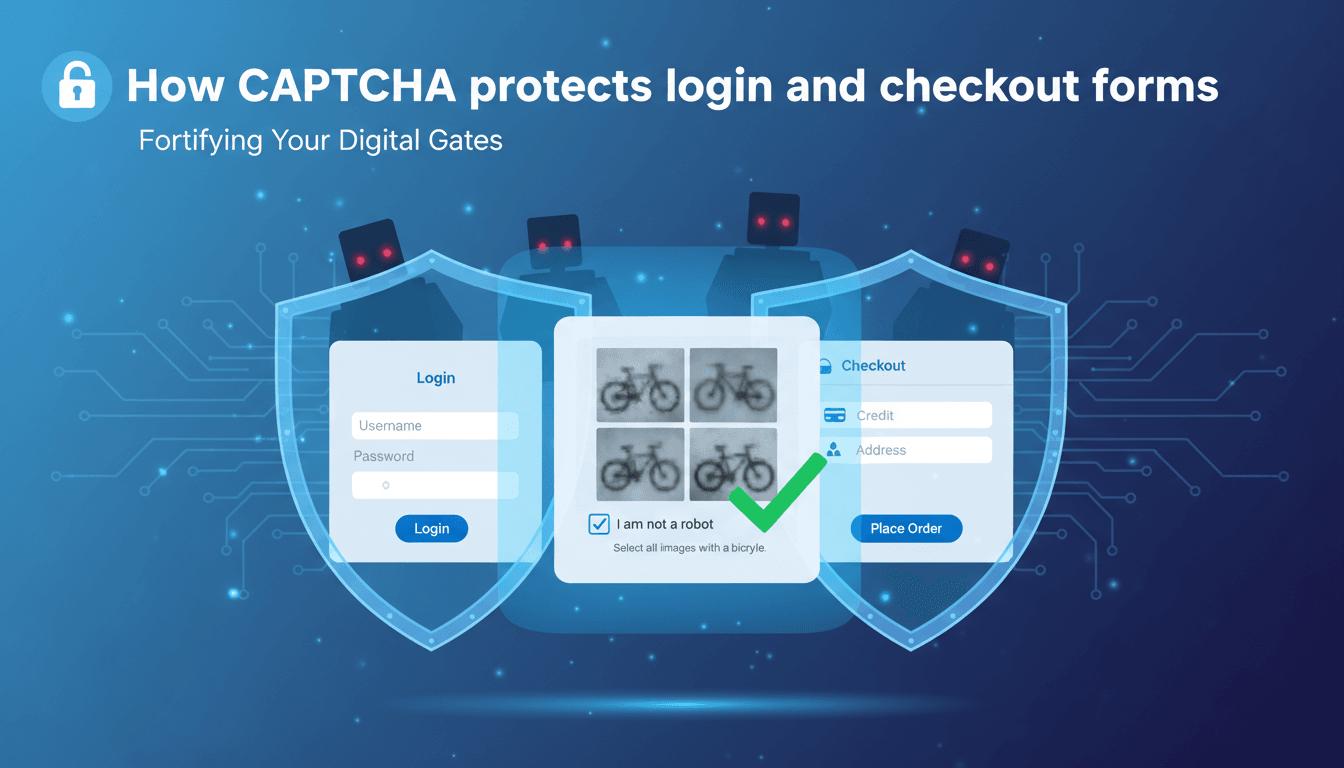
CAPTCHA adds a necessary layer of security to your WooShop store by distinguishing between human visitors and automated bots. By enabling it on your login and checkout forms, you prevent fraudulent orders, fake account creation, and "brute force" login attempts that can compromise your site’s performance.
How to enable CAPTCHA on your store
Follow these steps to set up protection for your forms:
- Open your Dashboard: Log in to your WooShop admin area and navigate to the Settings or Security tab (this may vary slightly depending on your specific plan).
- Select your CAPTCHA provider: Most users choose hCaptcha or Google reCAPTCHA. Both offer free tiers that work well for small businesses.
- Enter your API Keys: You will need a "Site Key" and a "Secret Key" from your chosen provider. Copy and paste these into the corresponding fields in your WooShop settings.
- Select your forms: Check the boxes for the forms you want to protect. We recommend selecting at least Customer Login, Account Registration, and Checkout.
- Save and test: Click Save Changes. Open your store in a private/incognito window to verify the CAPTCHA box (or invisible badge) appears on your login and checkout pages.
When this protection is most helpful
- Preventing Card Testing: Fraudsters often use bots to test thousands of stolen credit card numbers on WooCommerce checkout pages. CAPTCHA stops these bots from completing the form, saving you from high transaction failure rates and potential merchant fee penalties.
- Stopping Fake Accounts: If you notice a surge of new "customers" with gibberish names and email addresses, bots are likely hitting your registration page. Enabling CAPTCHA ensures only real people can create accounts.
- Securing the Login Page: Bots constantly try common password combinations to gain admin access. CAPTCHA makes these "brute force" attacks nearly impossible.
Troubleshooting common issues
The CAPTCHA doesn’t appear on the page
This is usually caused by a caching plugin or a browser extension. Try clearing your site cache from the WooShop top bar and then check the page in a private browser window.
Users see an "Invalid Credentials" or "Verification Failed" error
Double-check that your Site Key and Secret Key are pasted correctly. Even an extra space at the end of the key can cause the verification to fail. If you recently changed your domain name, you must update the domain in your hCaptcha or Google reCAPTCHA console.
The CAPTCHA is blocking real customers
If you are using "v2" (the "I am not a robot" checkbox), it can occasionally be sensitive. If your customers are complaining, consider switching to "v3" or "Invisible" mode, which monitors behavior without requiring the user to click a box unless their activity looks suspicious.
Summary
Using CAPTCHA is a simple way to keep your store running smoothly without manual intervention. It filters out the noise of the internet so you can focus on real customers.
Related guides:
- How to set up secure payment gateways
- Managing customer account permissions
- Best practices for strong store passwords