Introduction to the visual page builder
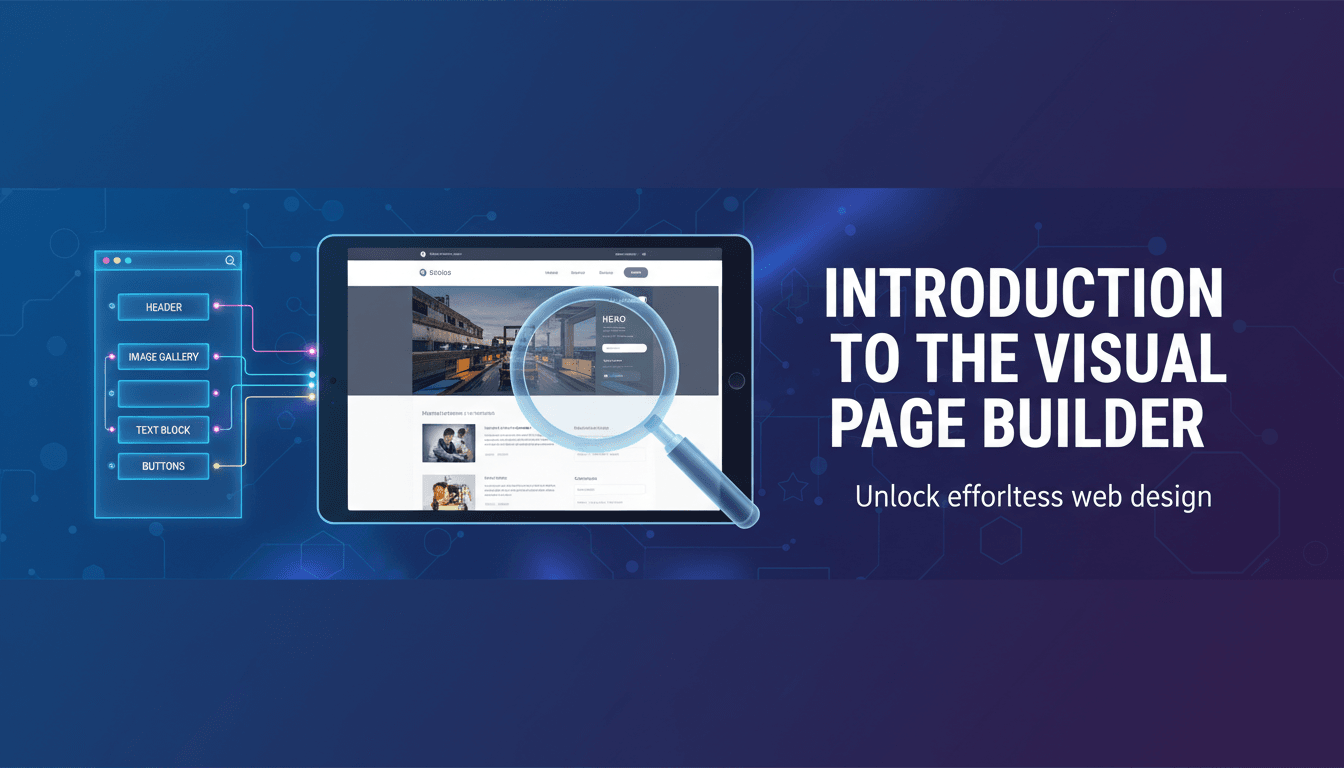
The visual editor is where you control the look and layout of your store. Instead of writing code, you use "blocks" to add text, images, and products. Because WooShop is built on WordPress and Kadence, you see exactly how your site will look to customers while you are making changes.
Getting started with the editor
- Open the editor: Log in to your WooShop dashboard. Navigate to Pages and click on the name of the page you want to change (like "Home" or "About").
- Select an element: Click on any part of the page—a headline, a photo, or a button. You will see a small toolbar appear directly above that item with basic styling options.
- Use the Sidebar: On the right side of the screen, you will see a settings panel. This is where you make specific changes, such as changing colors, adjusting font sizes, or adding spacing around a block.
- Add new content: Click the + (Plus) icon at the top left of the screen. This opens the block library. You can drag and drop elements like "Row Layouts," "Advanced Headings," or "Product Grids" directly onto your page.
- Reorder your layout: Use the List View icon (it looks like three staggered lines) in the top toolbar. This shows an outline of your page, making it easy to drag blocks up or down to change their order.
- Save your work: Click the blue Update button in the top right corner to make your changes live.
Real-world examples
- Updating a sale banner: Click on your homepage hero section. Change the text to announce your latest promotion, swap the background image for a seasonal photo, and update the button link to point to your "Sale" category.
- Building an "About Us" page: Use a "Row Layout" block with two columns. Put a photo of your storefront in the left column and your brand story in the right column.
- Highlighting new arrivals: Add a "Product Grid" block to your homepage. Set the filter to show "Latest Products" so your newest inventory automatically appears for customers.
Troubleshooting common issues
- Accidental deletions: If you delete a block by mistake, use the Undo arrow in the top toolbar or press
Ctrl + Z(Windows) orCmd + Z(Mac). - Elements look cramped: Check the "Padding" or "Margin" settings in the right-hand sidebar. Adding a little extra space (usually 20px to 40px) often makes the page look much cleaner.
- Changes aren’t showing on mobile: The editor has a "Mobile View" icon at the top. Click it to see how your page looks on a phone. You can adjust font sizes specifically for mobile without changing how they look on a desktop.
- Missing settings: If the right-hand sidebar disappears, click the Settings (gear) icon in the top right corner to bring it back.
Recap
The visual editor uses blocks to build your site. Select an item to see its toolbar, use the right sidebar for detailed styling, and always check the mobile view before hitting update.
Related links:
- How to use Kadence Row Layouts
- Adding products to your homepage
- Customizing your store’s header and footer