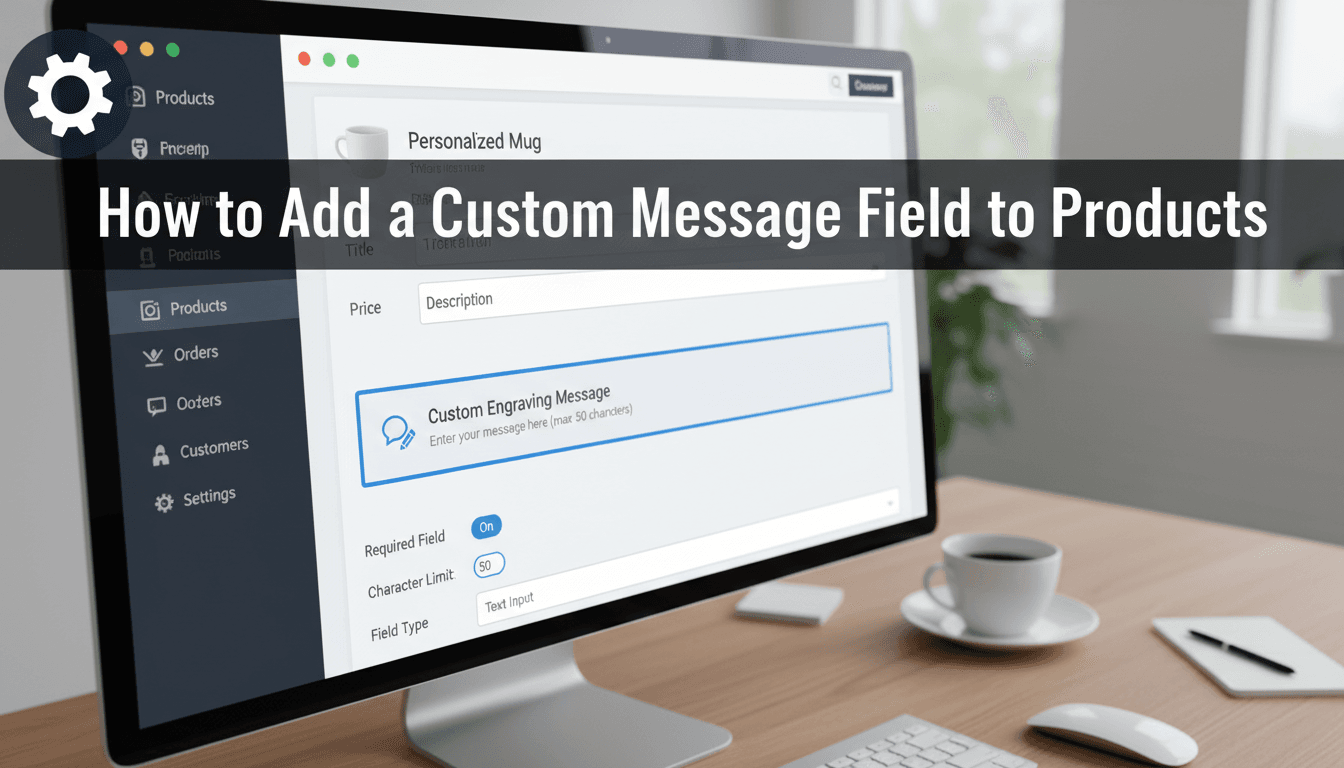
Allowing customers to add personal notes or instructions to their orders reduces manual follow-up emails and ensures accuracy. Whether you need a simple name for an engraving or a long gift message, adding a custom field directly to your product page makes the checkout process smoother for your shoppers.
How to add a custom text field
Follow these steps to add a message box to your product pages using the built-in product options in your WooShop dashboard.
- Open your product: Go to Products in your sidebar and click on the name of the product you want to edit.
- Locate Product Data: Scroll down to the Product Data section below the main text editor.
- Select Add-ons: Click the Add-ons tab on the left-hand side of this box.
- Create a new field: Click the Add Field button.
- Choose the type: Use the dropdown menu to select Short Text (for things like names or dates) or Long Text (for longer gift messages or special instructions).
- Label the field: Enter a title in the Title box, such as "Engraving Text" or "Gift Note." This is what the customer will see.
- Set requirements: Check the Required field box if the customer must fill this out before they can add the item to their cart.
- Save your changes: Scroll back up and click the blue Update button on the right side of the screen.
Practical uses for custom fields
Different businesses use message fields to gather specific details that a standard checkout doesn’t cover:
- Bakery or Florist: A "Gift Card Message" field so the recipient knows who the delivery is from.
- Jewelry Store: An "Engraving" field with a character limit to ensure the text fits on a ring or watch.
- Custom Apparel: A "Name on Jersey" field for personalized clothing.
- Restaurants: A "Kitchen Notes" field for specific allergy information or "no onions" requests.
Troubleshooting common issues
The field isn’t showing up on the store page
Ensure you clicked Update on the product page after adding the field. If you are using a caching plugin, clear your site cache to see the most recent changes.
I can’t find the customer’s message in the order
When a customer completes a purchase, their message appears in the Orders section of your dashboard. Open the specific order, and you will see the custom text listed directly under the product name in the item list.
The text is too long for my production process
Inside the Add-on settings for that field, you can set a Character Limit. This prevents customers from typing more than your process allows, such as a maximum of 20 characters for a monogram.
Summary
Custom fields help you collect necessary information at the exact moment a customer is ready to buy. This keeps your orders organized and your customers happy.
Related topics:
- How to view and manage new orders
- Setting up flat-rate shipping
- Updating product stock levels