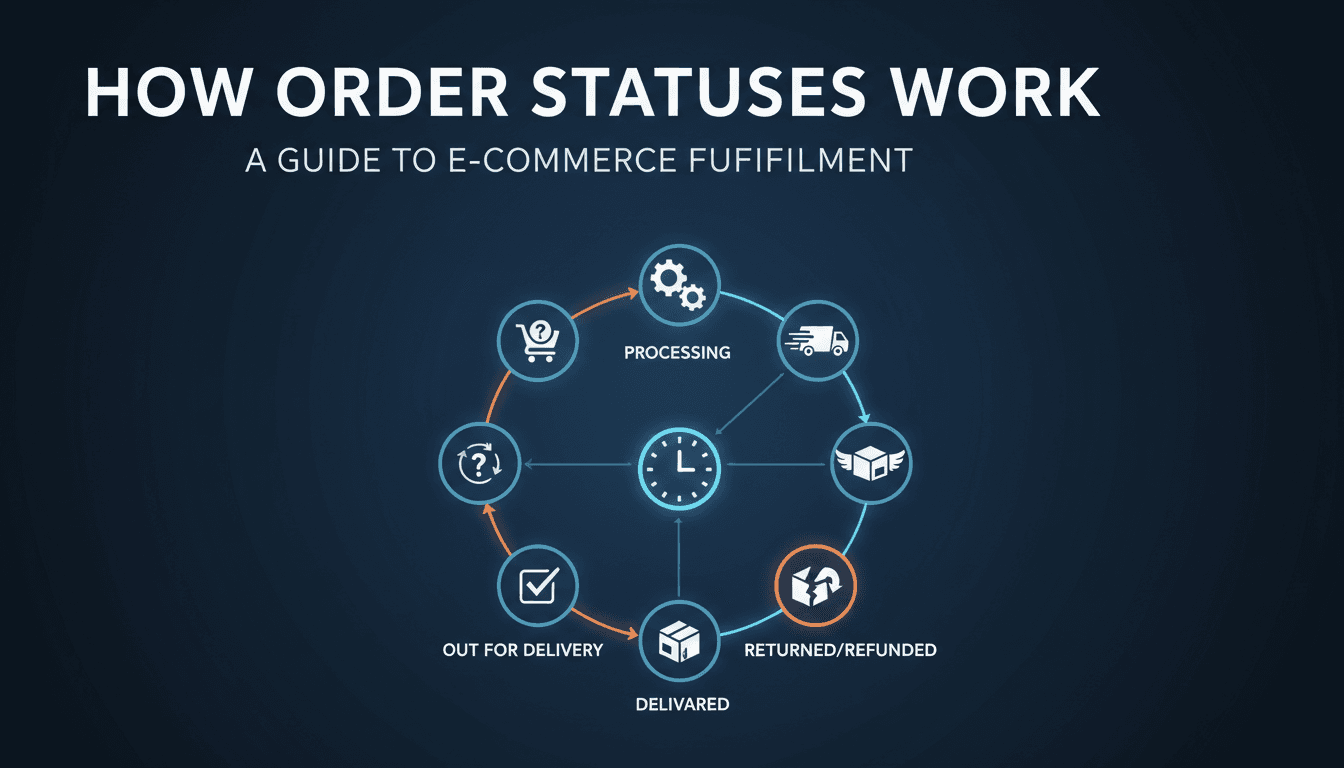
Managing your shop effectively starts with knowing exactly where every order stands. Order statuses act as a workflow system, moving a customer from the moment they click "buy" to the moment the package arrives at their door.
How to update an order status
Changing a status manually is common when you’ve finished packing a box or need to pause an order.
- Log in to your WooShop dashboard and go to WooCommerce > Orders.
- Click on the Order Number or the customer’s name to open the details.
- Look for the Status dropdown menu in the "General" section.
- Select the new status from the list.
- Click the Update button on the right side of the screen.
Understanding the different statuses
Each status handles two things: it tells you what to do next, and it usually sends an automated email to your customer.
- Pending payment: The order has been created, but the transaction hasn’t finished (common with stripe or PayPal if the user closes the window too early).
- Processing: The payment is successful and the money is in your account. This is your signal to start packing the items.
- On hold: You are waiting for something, like a bank transfer to clear or a stock check. This reduces your inventory levels so no one else can buy the items.
- Completed: The order is fulfilled and shipped. This sends the final "Your order is complete" email to the customer.
- Cancelled: The order was stopped by the customer or the admin. No payment was taken.
- Refunded: You have sent the money back to the customer.
Practical scenarios
When to use "On Hold"
If you run a restaurant and a customer chooses "Pay in Store," the order might sit as On Hold until they arrive. This ensures the kitchen knows the order is real, but the transaction isn’t finalized until they tap their card at the counter.
When to use "Completed"
For physical goods, only move to Completed once the package is in the mail. If you sell digital downloads, WooShop usually moves orders to Completed automatically once the payment clears, as there is no shipping step involved.
Troubleshooting and tips
The order is paid, but it still says "Processing"
This is normal. Even after payment, WooCommerce stays in Processing so you know you still need to ship the item. It will not move to Completed on its own for physical products.
My customer didn’t get an email
Emails are triggered by the status change. If you change a status and then quickly change it again, the system might skip an email. Also, check that the order status was actually updated—if you don’t click the "Update" button, the change won’t save and the email won’t fire.
I accidentally marked an order as Completed
Don’t worry. You can change the status back to Processing using the same dropdown menu. However, keep in mind the customer will have already received the "Order Complete" email. It’s often best to leave a note in the Order Notes section explaining the mistake for your own records.
Related topics:
- How to handle refunds
- Setting up shipping tracking
- Customizing customer emails