Category: Blog

How to write effective product descriptions
Product descriptions tell your customers why your item is the right choice. Since online shoppers can’t hold or try your products, your words need to provide the information and confidence they need to click "Add to Cart." Good descriptions also help search engines like Google understand what you’re selling, making it easier for new customers…
How to add a simple product in WooCommerce
A simple product is the backbone of most online shops. It represents a single item that doesn’t have variations—like a one-size tote bag, a specific book, or a bag of coffee beans. Since there are no choices for the customer to make (like picking a size or color), the buying process is quick and direct.…
How to design a custom footer with blocks
Your footer is the last thing visitors see before they leave your site. It’s the best place to keep essential information accessible—like your contact details, store hours, and legal links—without cluttering your main navigation. How to customize your footer WooShop uses the Kadence builder, which lets you drag and drop elements into a grid layout.…

How to build a custom header with blocks
Your header is the first thing customers see. It holds your logo, navigation, and shopping cart, helping visitors find their way around your store. Using the Kadence block-based builder, you can arrange these elements exactly where you want them without touching any code. How to build your header Open the Customizer Log in to your…

Customizing your header with the theme customizer
Your header is the first thing customers see when they land on your shop. It houses your logo, navigation menu, and essential shopping tools like the search bar and cart. Using the WooShop header builder, you can arrange these elements exactly where you want them and ensure they look great on both desktop and mobile…

How to add and use custom fonts
Custom fonts give your store a unique personality and help your website look consistent with your brand’s logo and physical signage. While WooShop comes with hundreds of Google Fonts pre-installed, adding your own specific font files allows you to stand out and keep your branding tight. How to upload your custom fonts Follow these steps…
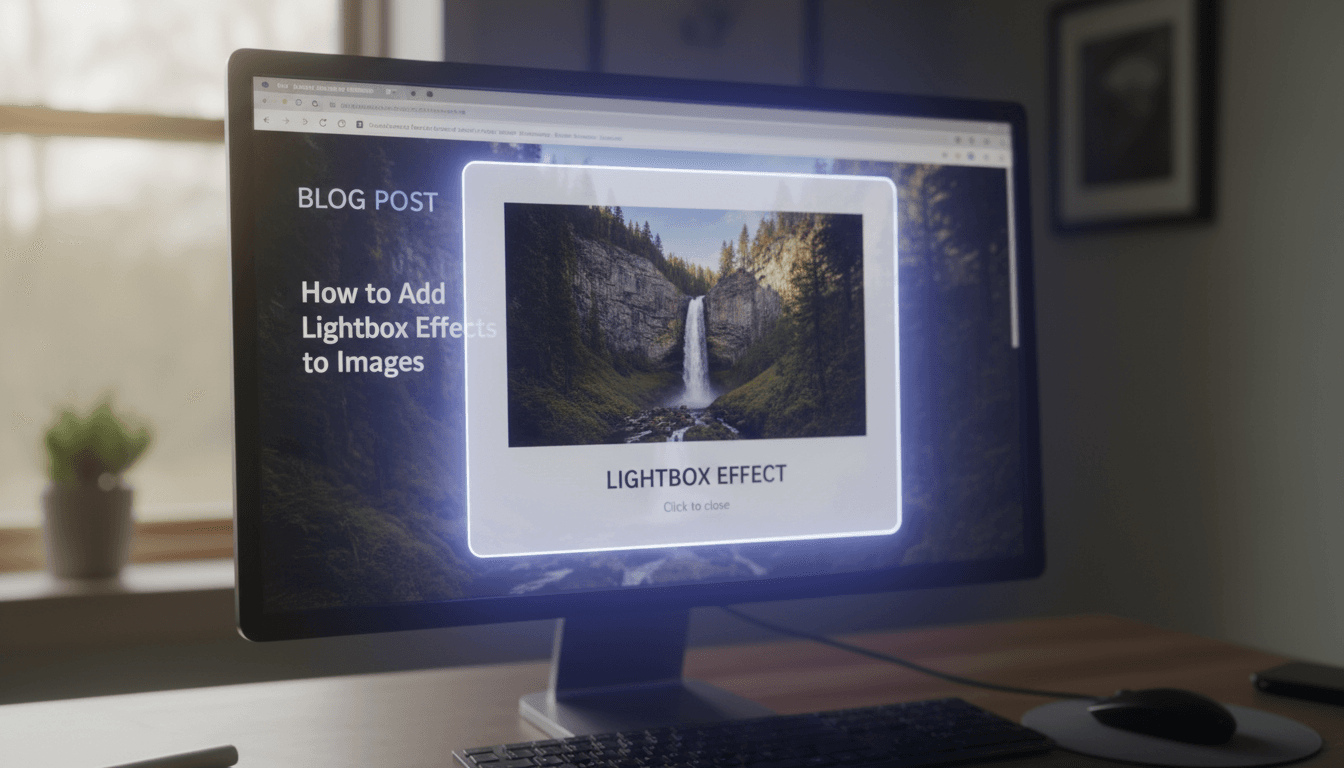
How to add lightbox effects to images
A lightbox is a pop-up effect that enlarges an image when a visitor clicks on it. Instead of sending the user to a new page, the background dims and the image expands in the center of the screen. This helps customers see fine details—like fabric textures or menu items—while staying exactly where they are on…

How to use the grid view to organize your work
The grid view gives you a visual bird’s-eye view of your store’s inventory. Instead of scrolling through a long list of text, you can see your products as cards with images. This makes it much easier to spot missing photos, check for consistent branding, and manage your catalog visually. Setting up your grid view Follow…
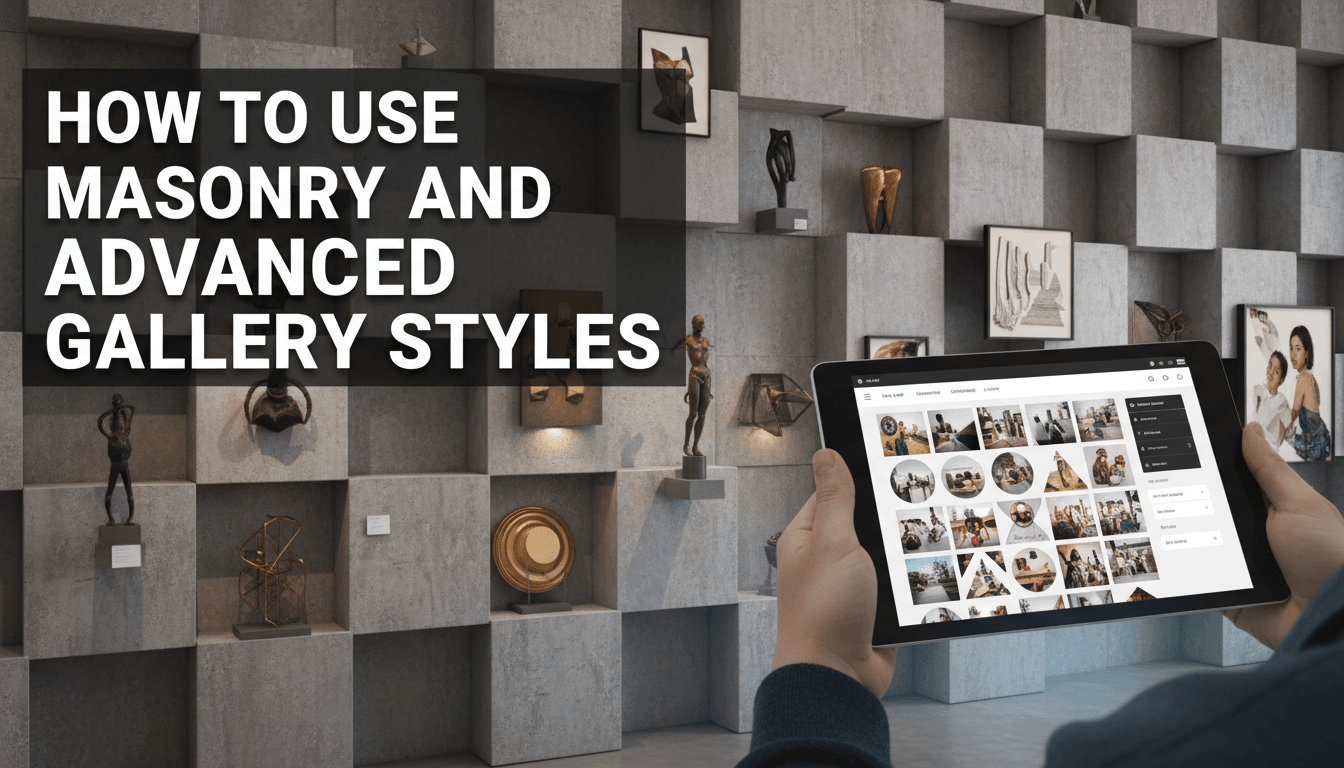
How to use masonry and advanced gallery styles
Standard photo galleries often force your images into rigid, identical squares. Masonry and advanced styles allow your photos to keep their natural proportions while fitting together like a puzzle. This creates a professional, editorial look for your product showcases, menus, or portfolio pages without needing a designer. How to set up an Advanced Gallery Open…

How to create an image gallery
An image gallery allows you to display multiple photos in an organized grid or carousel rather than a single long list. This keeps your pages clean while giving customers a full view of your products, services, or location. How to add a gallery to your site WooShop uses the block editor, making it easy to…