Category: Blog
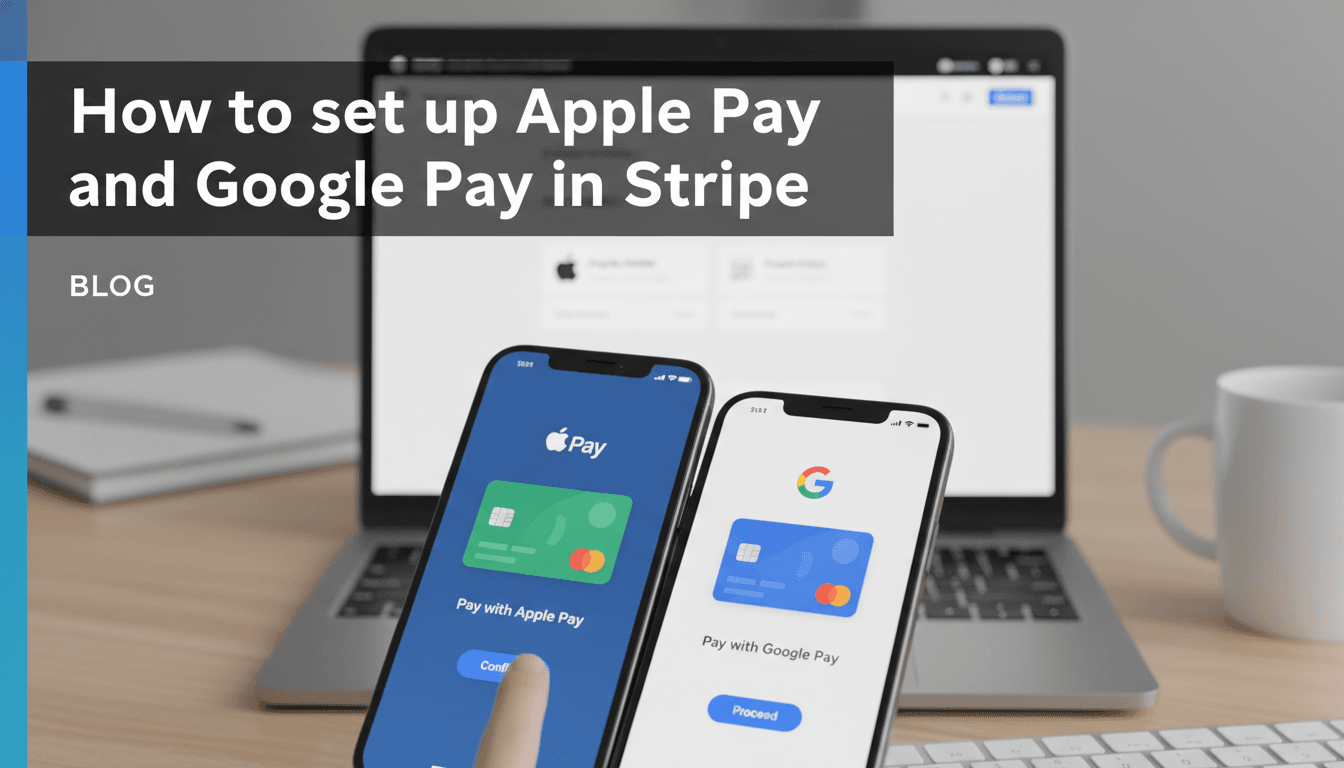
How to set up Apple Pay and Google Pay in Stripe
Apple Pay and Google Pay allow your customers to complete a purchase in seconds using the saved payment details on their phone or computer. By removing the need to manually type in credit card numbers and shipping addresses, you reduce friction and help more shoppers finish their checkout—especially on mobile. 1. Enable Payment Methods in…
Connecting your PayPal account
PayPal is one of the most recognized payment methods worldwide. By connecting it to your store, you allow customers to pay using their PayPal balance, linked bank accounts, or major credit cards. It’s a reliable way to build trust with new shoppers and get paid quickly. How to connect PayPal to your store Follow these…

Connect your Stripe account for card payments
Stripe is the standard for accepting credit and debit cards on your WooShop store. It handles the security of the transaction, allows customers to use Apple Pay or Google Pay, and ensures your sales revenue is deposited directly into your bank account. How to set up the connection Before you start, make sure you have…

How to add a logo to WooCommerce emails
Customizing your email header is one of the quickest ways to make your store look professional. When customers receive an order confirmation or a shipping update, seeing your logo at the top of the message builds trust and ensures your branding stays consistent from checkout to delivery. How to upload your logo WooCommerce handles email…

How to customize transactional emails with the email designer
Transactional emails are the automated messages your store sends when a customer places an order, resets a password, or receives a shipping update. Using the email designer allows you to change the colors, fonts, and layout of these messages so they match your brand identity instead of using the default WooCommerce look. How to customize…
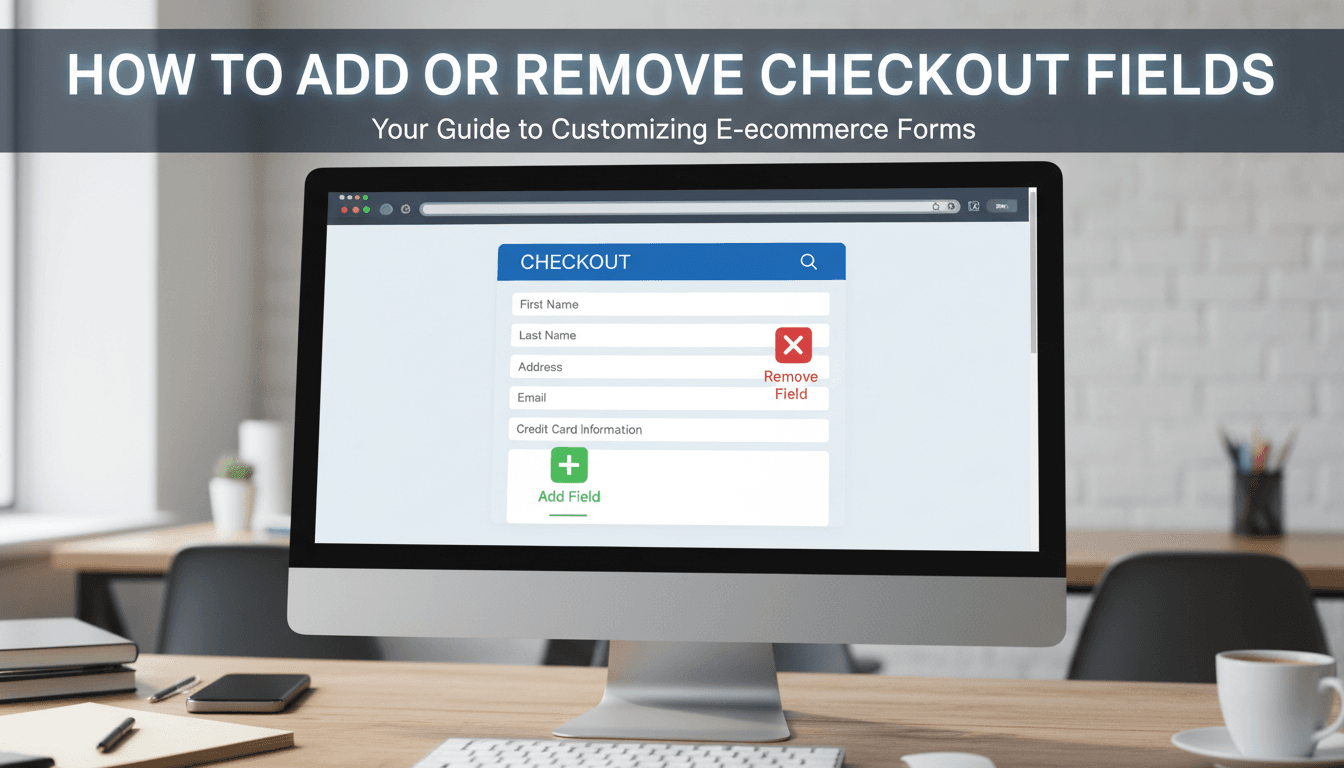
How to add or remove checkout fields
A clean checkout process reduces friction and helps customers finish their purchase faster. By default, WooCommerce asks for a lot of information—like phone numbers or company names—that you might not actually need. Customizing these fields allows you to remove unnecessary steps or collect specific details like gift messages or gate codes. How to edit your…

Customizing your main shop page layout
Your shop page is the digital storefront of your business. How you arrange your products—whether in a tight grid or a spacious list—changes how customers browse your inventory and how quickly they find what they need. How to customize your shop layout You can make most layout changes directly through the WordPress Customizer. This allows…
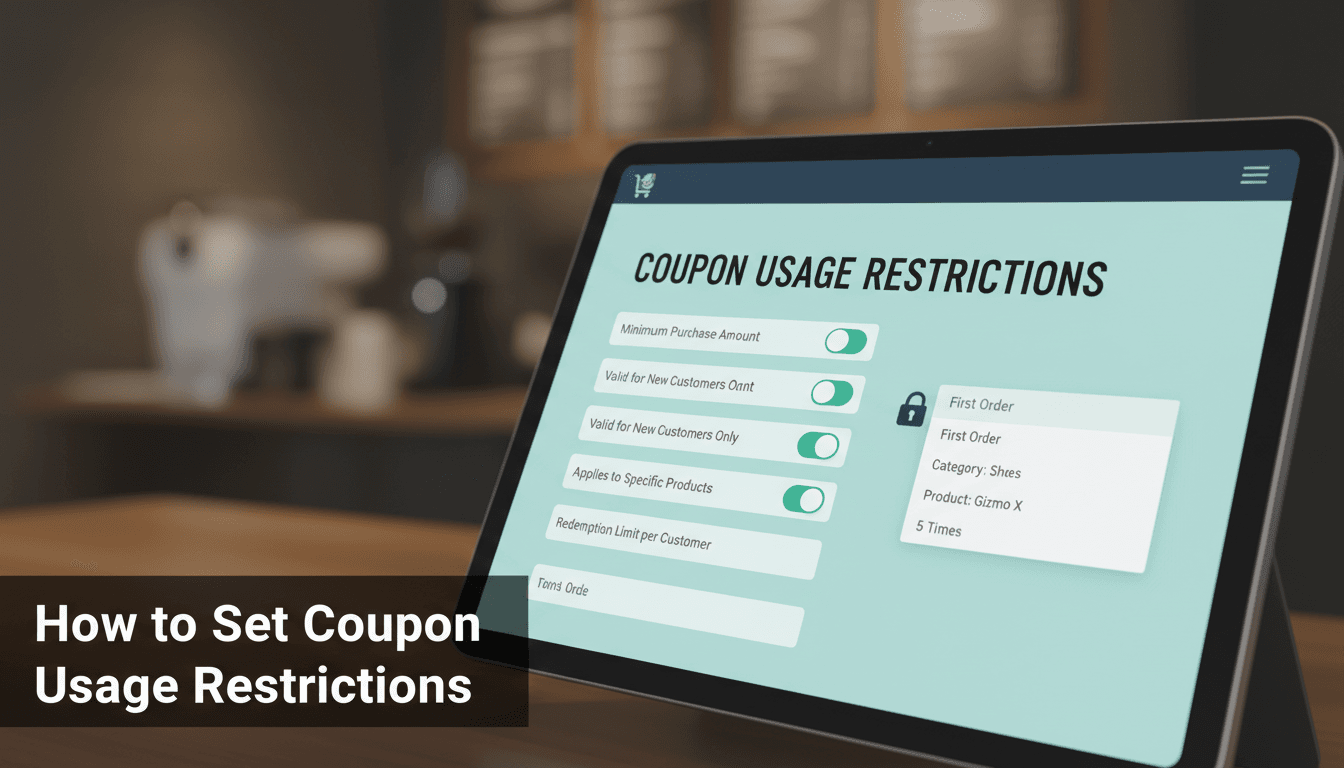
How to set coupon usage restrictions
Setting restrictions on your coupons ensures your discounts are used exactly how you intended. It prevents customers from applying high-value codes to small purchases or doubling up on deals that could hurt your profit margins. How to set restrictions Log in to your WooShop dashboard and go to Marketing > Coupons. Click on the coupon…
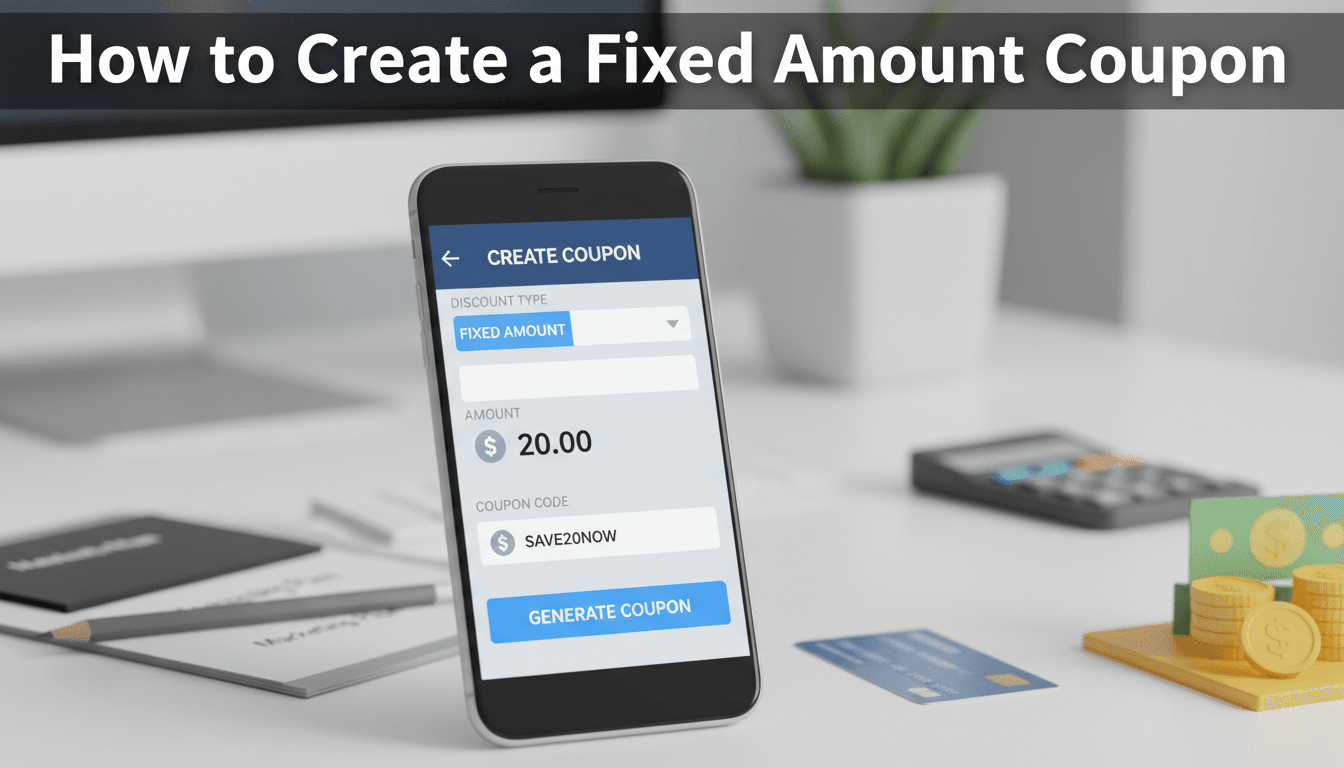
How to create a fixed amount coupon
Fixed amount coupons allow you to take a specific dollar value off a customer’s order. Unlike percentage discounts, which fluctuate based on the cart total, a fixed discount gives you precise control over exactly how much money is being deducted from your revenue. How to set up your coupon Log in to your WooShop dashboard…

Create a percentage discount coupon
Percentage discount coupons allow you to offer a set percentage off a customer’s order total or specific products. They are one of the most effective ways to run seasonal sales, reward newsletter subscribers, or clear out old inventory without needing to calculate fixed price drops for every item. How to create your coupon Log in…