
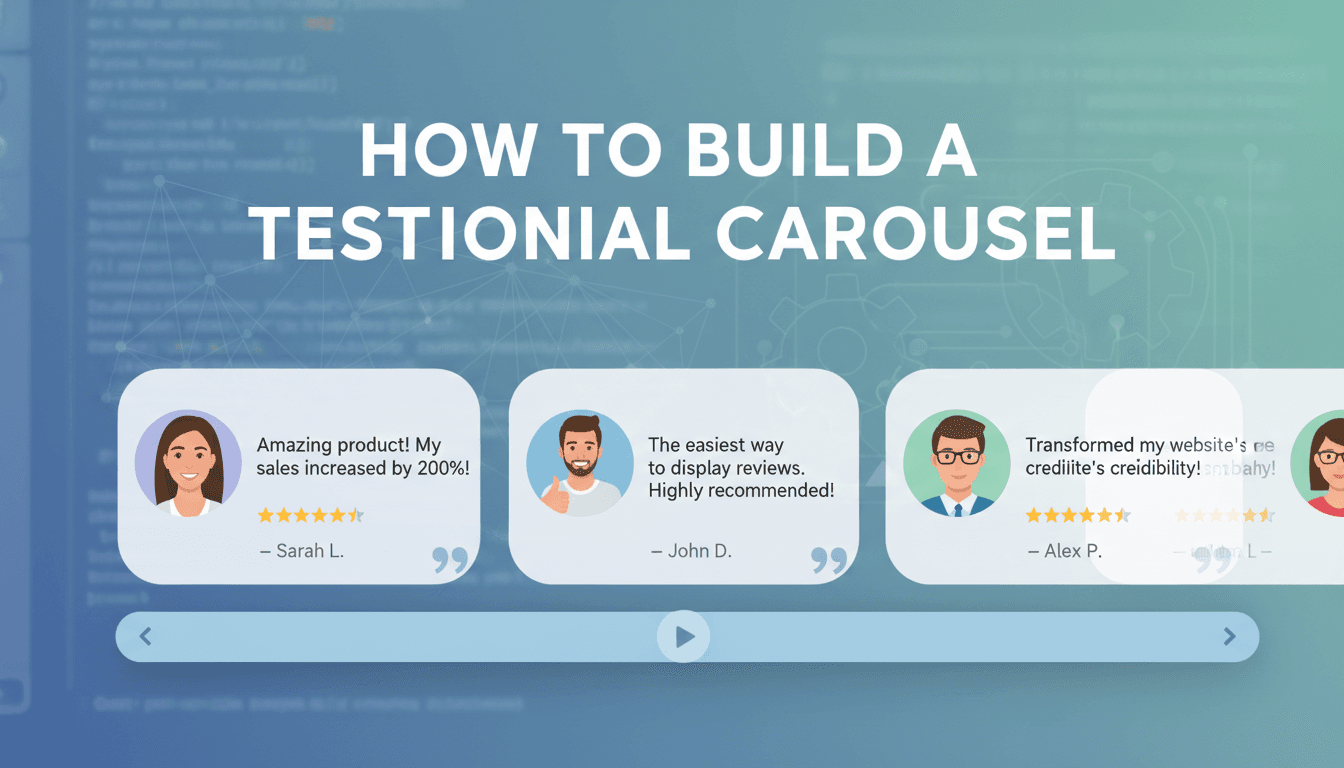
How to build a testimonial carousel
Social proof helps visitors feel confident in their purchase. A testimonial carousel allows you to display multiple reviews in a single, compact area, making it easy for customers to see what others love about your products or services without cluttering your page.
How to set up your carousel
- Open the Page Editor: Navigate to the page where you want the reviews to appear (like your homepage or an "About" page) and click Edit.
- Add the Testimonials Block: Click the (+) icon to add a new block. Search for "Testimonials" and select the Kadence Testimonials block.
- Choose the Carousel Layout: Once the block is added, look at the right-hand settings sidebar. Under Layout Settings, click the icon that looks like a slider to change the layout from a grid to a carousel.
- Add Content: Click inside the block to type in your customer’s name, their review, and their title or location. You can also upload a profile photo for each person by clicking the image placeholder.
- Configure the Slider: In the sidebar under Carousel Settings, you can toggle features like:
- Autoplay: Allows the reviews to slide automatically.
- Arrows and Dots: Helps users manually click through the reviews.
- Items to Show: Choose how many testimonials appear at once (usually 1 for mobile and 2 or 3 for desktop).
- Style the Design: Use the Style tab in the sidebar to change the background colors, font sizes, or border radius to match your store’s branding.
- Save Your Changes: Click Update at the top right of the screen to make the carousel live.
Practical uses for your store
- Product Pages: Place a carousel at the bottom of a specific product page featuring reviews only for that item.
- Service Sites: If you run a salon or a consultancy, use the carousel to highlight specific results or "before and after" summaries.
- Homepage Trust: Position the carousel just below your main banner to immediately establish credibility with new visitors.
Troubleshooting common issues
- Images are blurry or cropped poorly: For the best look, ensure all customer photos are the same size before uploading. A 200×200 pixel square image works best for testimonial avatars.
- The carousel is too tall: If one review is much longer than the others, it will make the entire block taller. Try to keep your featured quotes roughly the same length, or use the "Equal Height" toggle in the layout settings.
- It’s not sliding on mobile: Check your Carousel Settings to ensure you haven’t disabled "Touch Drag." This allows mobile users to swipe through the reviews with their thumb.
Summary
Testimonial carousels are a simple way to keep your site interactive and trustworthy. By using the Kadence Testimonials block, you can customize the look and feel to fit your WooShop theme perfectly.
Related guides:
- How to add a contact form
- Customizing your homepage layout
- Setting up product reviews in WooCommerce


