How to add lightbox effects to images
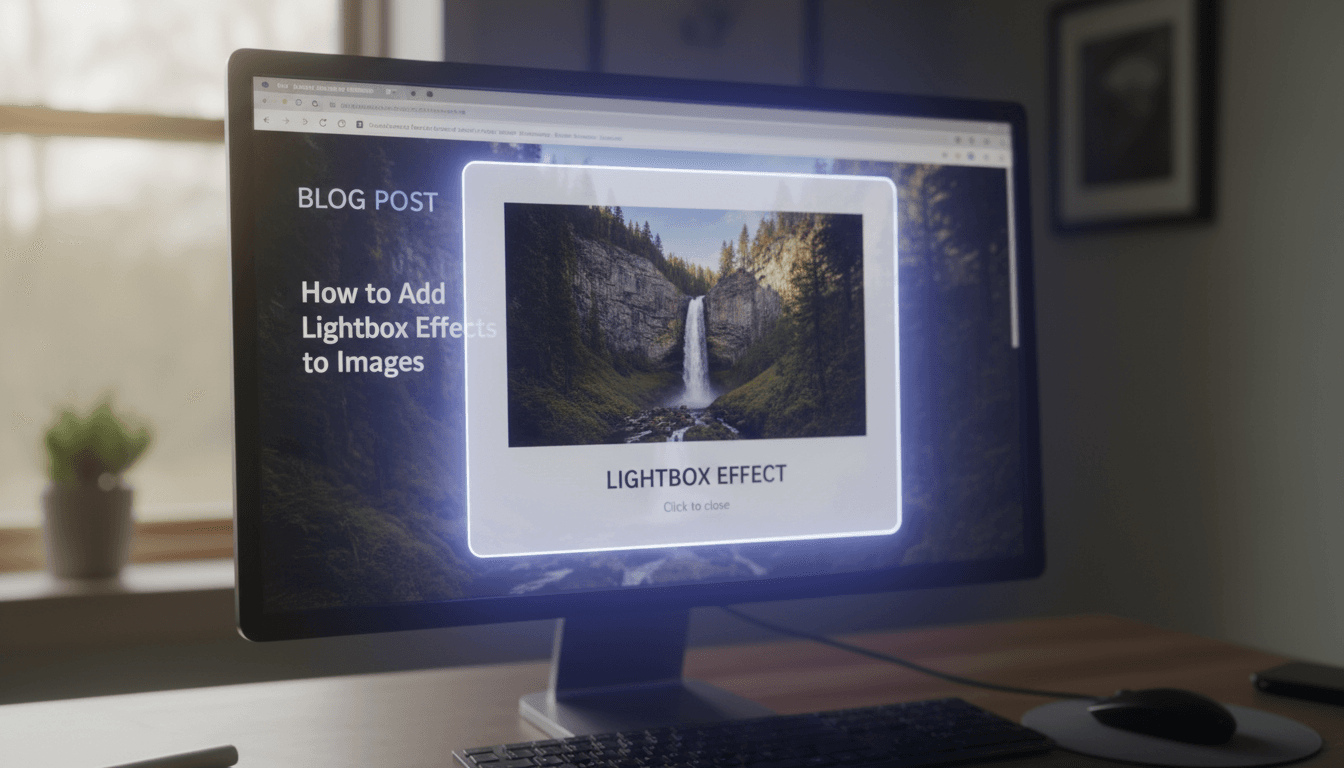
A lightbox is a pop-up effect that enlarges an image when a visitor clicks on it. Instead of sending the user to a new page, the background dims and the image expands in the center of the screen. This helps customers see fine details—like fabric textures or menu items—while staying exactly where they are on your site.
Enabling the Lightbox on a Page or Post
WooShop uses the Kadence system, which makes adding a lightbox simple for both individual images and galleries.
- Open the Editor: Navigate to the page or blog post you want to edit.
- Select the Block: Click on the Image or Gallery block you want to enable.
- Open Link Settings: In the right-hand settings sidebar, look for the Link Settings section.
- Link to Media File: In the "Link To" dropdown menu, select Media File. This is required for the lightbox to function.
- Toggle the Lightbox: Once "Media File" is selected, a toggle switch labeled Enable Lightbox will appear. Switch it to the "On" position.
- Update the Page: Click the blue Update button at the top of the screen to save your changes.
Practical Scenarios
- Restaurant Menus: If you upload a photo of your physical menu, a lightbox allows diners to zoom in and read the small print easily on their mobile phones.
- Product Detail: For handmade goods or jewelry, use a lightbox on a gallery of close-up shots so customers can inspect the craftsmanship.
- Portfolio Work: If you are a contractor or designer, use the lightbox on "Before and After" photos to show the scale and quality of your work in high resolution.
Troubleshooting Common Issues
The image opens in a new tab instead of a pop-up.
Check your link settings. This usually happens if you’ve selected "Media File" but forgot to toggle the "Enable Lightbox" switch. If the switch isn’t visible, ensure you are using the Kadence Image or Gallery block.
The image looks blurry when enlarged.
The lightbox can only show an image as large as the file you uploaded. If you uploaded a small thumbnail (e.g., 300px), it will look pixelated when stretched. Try uploading a version that is at least 1200px to 1500px wide for crisp results.
Nothing happens when the image is clicked.
Verify that the "Link To" setting is not set to "None" or "Attachment Page." It must be set to "Media File" for the click action to trigger the lightbox.
Next Steps
Setting up your images is just one part of a professional shop. You might also find these topics helpful:
- Optimizing images for faster loading
- Creating your first WooCommerce product gallery