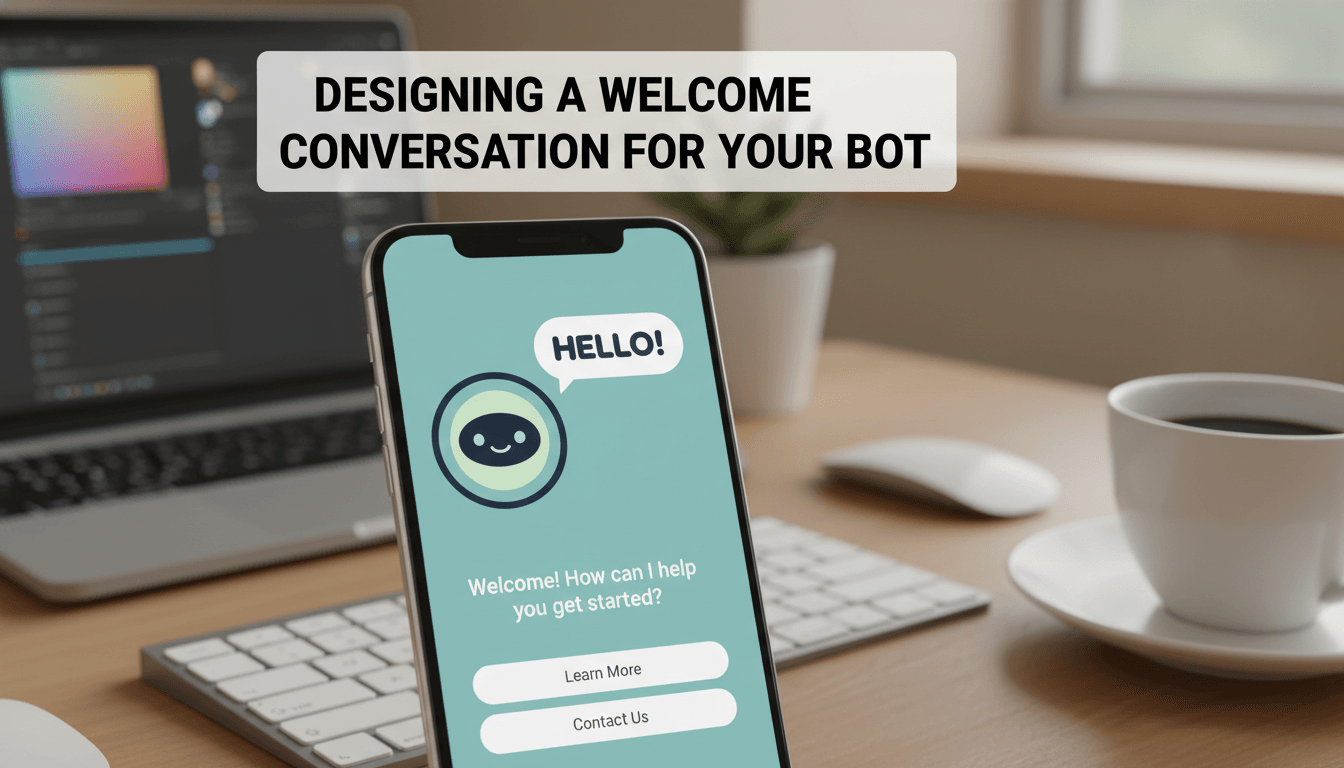
Designing a welcome conversation for your bot
Your welcome conversation is the first thing visitors see when they click your chat bubble. It acts as a digital greeter, helping customers find products, track orders, or get answers to common questions immediately, even when you’re offline.
How to set up your welcome flow
Follow these steps to build a simple, effective greeting.
- Open your Chatbot Dashboard: From your WooShop admin, go to Chatbot > Settings. Select the Welcome Message or Flow Builder tab.
- Write your greeting: Keep your first message short and helpful. Instead of a generic "Hello," try something specific to your shop, like "Hi! Looking for something specific today?"
- Add Quick Reply buttons: These are clickable buttons that appear right under your greeting. They prevent customers from having to type. Common buttons include "Where is my order?", "Shipping info," or "Talk to a person."
- Connect buttons to actions: For each button you create, choose what happens next. You can link to a specific WooCommerce product category, trigger a new text response, or open a contact form.
- Set the delay: Adjust the timing so the message feels natural. A 2–3 second delay usually works best so it doesn’t pop up the instant the page loads.
- Save and test: Click Save Changes. Open your store in an incognito window to see how the conversation feels as a customer.
Practical scenarios
For an E-commerce Boutique
- Greeting: "Welcome to the shop! Can I help you find the right size or check an order?"
- Buttons: [Track My Order] [Size Guide] [New Arrivals]
For a Restaurant or Cafe
- Greeting: "Hi there! Want to see today’s specials or book a table?"
- Buttons: [View Menu] [Make a Reservation] [Opening Hours]
Troubleshooting common issues
- The chat bubble isn’t appearing: Check that your bot status is set to Active or Published. Also, ensure you haven’t restricted the bot to only show on specific pages (like just the Checkout page).
- Buttons aren’t working: Double-check that every button has a "Target" or "Action" assigned. A button with no destination won’t do anything when clicked.
- Too many messages at once: If the bot sends three long paragraphs immediately, users will likely close the window. Break long text into two smaller messages or use buttons to let the user "ask" for more info.
Summary
A good welcome conversation is brief and gives the user a clear next step. By using buttons and a friendly tone, you reduce the time customers spend searching and increase the likelihood of a sale.
Next steps to consider:
- Connecting your bot to your WooCommerce order data.
- Customizing the chat bubble colors to match your Kadence theme.
- Setting up "Office Hours" for live chat handoffs.