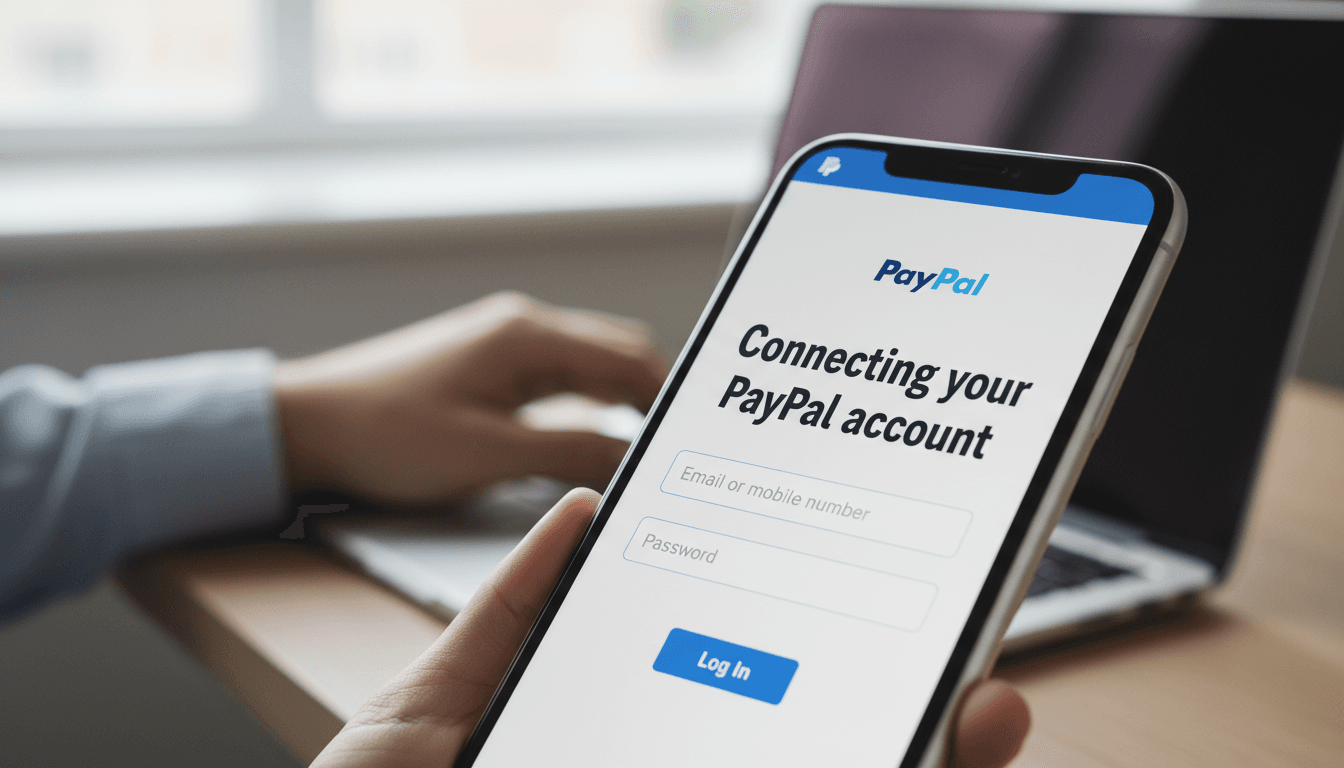
PayPal is one of the most recognized payment methods worldwide. By connecting it to your store, you allow customers to pay using their PayPal balance, linked bank accounts, or major credit cards. It’s a reliable way to build trust with new shoppers and get paid quickly.
How to connect PayPal to your store
Follow these steps to link your account and start accepting payments.
- Open your dashboard: Log in to your WooShop site and go to WooCommerce > Settings in the left-hand menu.
- Navigate to Payments: Click the Payments tab at the top of the page.
- Enable PayPal: Look for PayPal Payments in the list. Ensure the toggle is switched to On, then click the Finish setup or Manage button.
- Connect your account: Click the Activate PayPal button. This will open a secure pop-up window from PayPal.
- Log in: Enter the email address and password for your PayPal Business account. Follow the prompts to authorize the connection to your store.
- Confirm settings: Once the window closes, you will be redirected back to your shop. Ensure that the Enable PayPal Gateway box is checked and click Save changes at the bottom of the page.
Practical scenarios
- Standard Checkout: Customers see a "PayPal" button on your checkout page. They log in to their account and confirm the payment without ever leaving your site.
- Credit & Debit Cards: Even if a customer doesn’t have a PayPal account, they can often use the "Pay with Debit or Credit Card" option provided through the PayPal window.
- Mobile Payments: If your customer is shopping on their phone, PayPal often offers "One Touch" checkout, making it easier for them to buy on the go.
Troubleshooting common issues
The "Activate" button doesn’t open a window
This is usually caused by a pop-up blocker in your browser. Disable any ad-blockers or pop-up restrictions for your site and try clicking the button again.
Payments are staying in "Pending" status
Check your PayPal account to see if you need to confirm your email address. PayPal will hold funds until the email used to create the account is verified.
You see a "Sandbox" or "Test Mode" message
Inside your PayPal settings in WooCommerce, check that the Environment is set to Live. If it is set to "Sandbox," your store will only accept fake test payments and no real money will be processed.
Using a Personal account instead of Business
To accept payments on a professional store, PayPal requires a Business Account. You can upgrade a personal account for free within your PayPal settings.
Summary
Connecting PayPal takes just a few clicks through the secure onboarding window. Once connected, your store is ready to process international and local payments safely.
Next steps:
- [Setting up your shipping zones]
- [How to customize your checkout page]
- [Configuring taxes for your region]