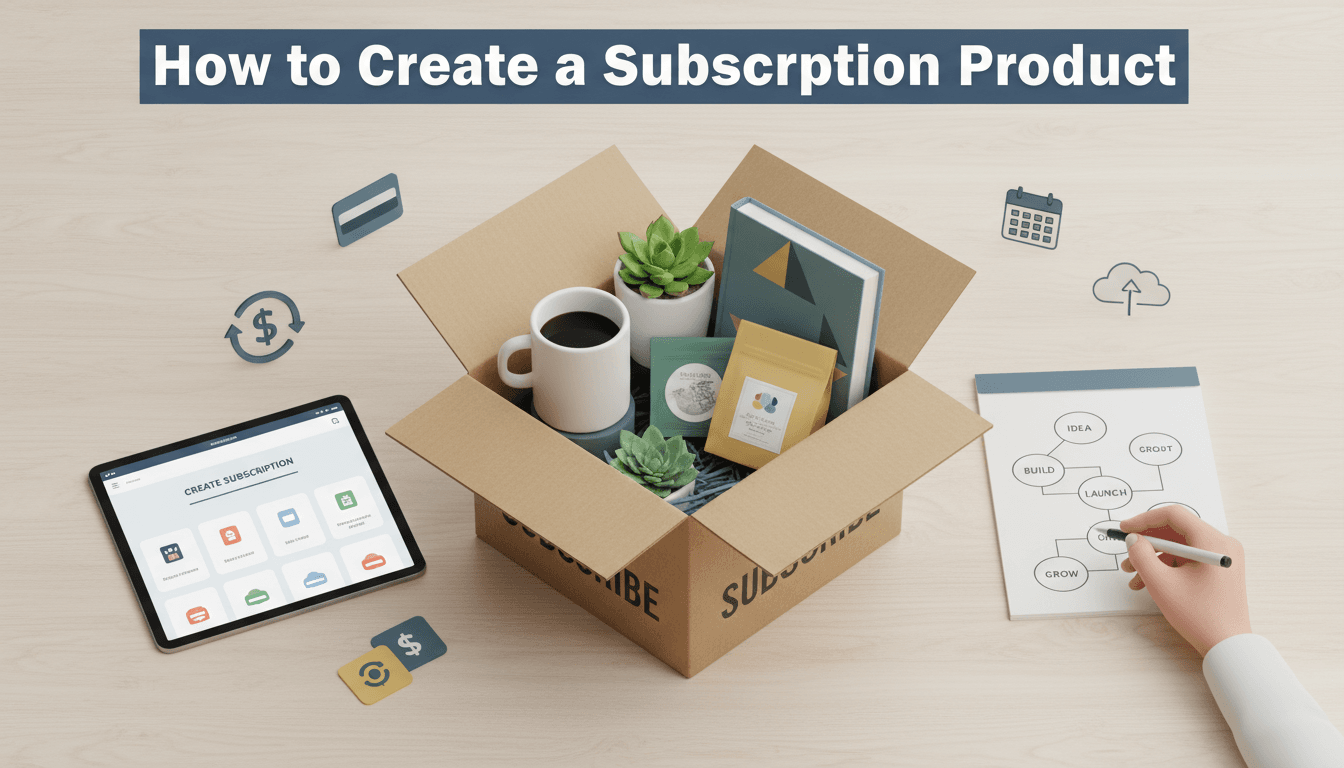
How to create a subscription product
Subscriptions provide a steady stream of recurring revenue and make it easier for your regular customers to keep buying from you. Whether you are selling a monthly snack box, a weekly cleaning service, or a yearly digital membership, setting up a subscription product automates the billing and renewal process.
How to set up your subscription
Follow these steps to move from a standard one-time product to a recurring one.
- Add a new product
Log in to your WooShop dashboard and go to Products > Add New. Enter your product name and a description that clearly explains what the customer receives in each billing cycle. - Select the product type
Scroll down to the Product Data box. Click the dropdown menu and select Simple Subscription. If you want to offer different tiers (like Silver, Gold, or Platinum), select Variable Subscription instead. - Set the price and billing cycle
In the General tab, look for the "Subscription price" field. Enter the cost and choose the frequency from the dropdown menus (e.g., $30 every 1 month). - Choose the expiration date
In the "Expire after" field, decide how long the subscription should last. For most ongoing services, set this to Never expire so the customer is billed until they choose to cancel. - Add optional fees or trials
- Sign-up fee: Add an amount here if you want to charge an upfront cost (like an activation fee) in addition to the first month’s payment.
- Free trial: Choose a duration (days, weeks, or months) to let customers try your service before their first payment is processed.
- Add images and categories
On the right side of the screen, set your Product Image. Assign the product to a category so it’s easy to find on your shop page. - Publish
Click the Publish button. Your subscription is now live and ready for customers.
Common subscription scenarios
- The Coffee Club: A $20 bag of beans delivered "every 2 weeks" with "never expire" selected.
- The Gym Membership: A $50 "every 1 month" fee with a "7-day free trial" to get people in the door.
- The Seasonal Box: A $100 payment "every 3 months" to align with Spring, Summer, Fall, and Winter deliveries.
Troubleshooting and tips
The checkout isn’t working
Subscriptions require a payment gateway that supports recurring billing, such as Stripe or PayPal. If your checkout page shows an error, double-check that your payment gateway is active and connected in WooCommerce > Settings > Payments.
Shipping costs are too high
By default, shipping is charged on every renewal. If you want to charge shipping only on the first order, you will need to adjust your shipping class settings specifically for that product.
Coupons aren’t applying correctly
When creating a coupon for a subscription, you can choose if the discount applies only to the first payment or to every recurring payment. Check the "Discount type" in your coupon settings to ensure it matches your goal.
Next steps
Now that your subscription is live, you may want to look into: