
How to set coupon usage restrictions
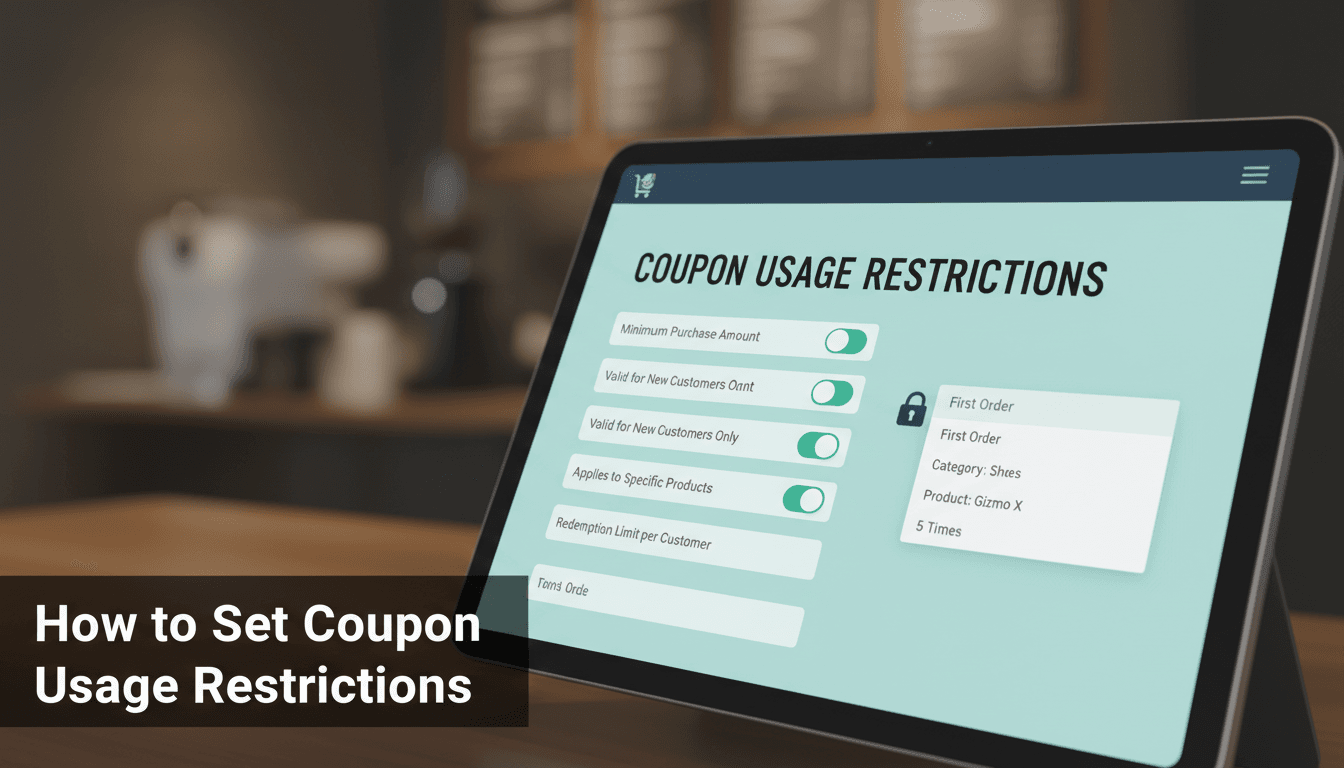
Setting restrictions on your coupons ensures your discounts are used exactly how you intended. It prevents customers from applying high-value codes to small purchases or doubling up on deals that could hurt your profit margins.
How to set restrictions
- Log in to your WooShop dashboard and go to Marketing > Coupons.
- Click on the coupon you want to edit, or click Add coupon to create a new one.
- Scroll down to the Coupon data section and click the Usage restriction tab on the left menu.
- Set your specific rules:
- Minimum spend: The subtotal amount required before the code works.
- Maximum spend: The upper limit where the coupon will no longer apply.
- Individual use only: Check this box if you don’t want customers to use this code in combination with other coupons.
- Exclude sale items: This prevents the coupon from working on products that are already marked down.
- Products / Categories: Search for specific items or entire collections to include or exclude from the deal.
- Allowed emails: Restrict the coupon so only specific customers (based on their billing email) can use it.
- Click Update or Publish on the right side of the screen to save your changes.
Common scenarios
- Protecting your margins: If you offer a $10 discount, you might set a Minimum spend of $50. This ensures you aren’t losing money on very small orders.
- Cleaning out old stock: If you want a discount to apply only to a specific category (like "Summer Clearance"), select that category in the Product categories field and leave the rest blank.
- VIP-only offers: Use the Allowed emails field to create a private code for a specific customer or a small group of loyal buyers. The code will only work if they use that specific email at checkout.
Troubleshooting
The coupon isn’t applying to the cart
Check if the cart contains "Sale" items. If you have Exclude sale items checked, the coupon will be rejected if even one discounted item is in the cart.
Customers are using multiple codes at once
Ensure the Individual use only box is checked. Without this, WooCommerce allows customers to stack as many valid coupons as they can find.
The code works for some products but not others
Double-check your Product/Category inclusions. If you have selected specific products, the coupon will only work for those items. If you want it to work for everything except a few items, use the Exclude products field instead.
Summary
Usage restrictions give you control over your store’s promotions. By setting minimum spends and excluding sale items, you can run sales confidently without manual oversight.
Related help:


